Share one family calendar across iPhone and Android
Podz brings the Apple, Google and Outlook calendars on your phone, your school's schedule and your kids' sports teams into one shared view, so the whole family is reading the same week. Setup takes a few minutes per calendar. After that, phone calendars can stay current with Auto Sync, and a calendar link syncs again on its own schedule.
Four ways to get a calendar into Podz
Choose a calendar source
Open More and choose Sync Calendars. If a team or school gave you a calendar link, use the school, sports or activity calendar option.
Add a school or sports calendar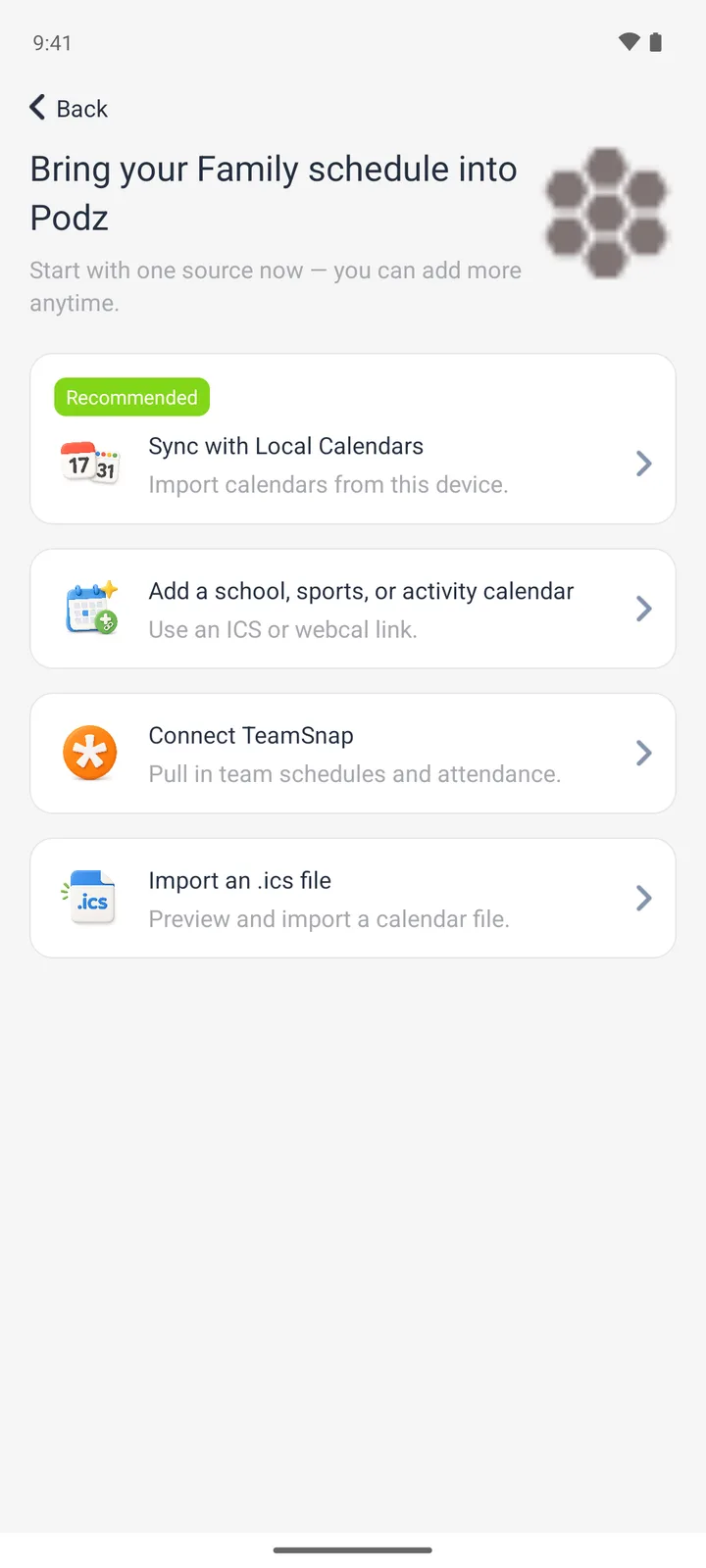
Your phone's calendar. Tap Sync with Local Calendars, allow calendar access, and pick the calendars on your device (Apple, Google, Outlook or others) to bring into your pod.
A school ICS file. Most schools publish the year as an .ics download. Save the file, tap it, and share it to Podz.
An ICS feed URL. Many schools and clubs publish a feed link instead of a file. Paste the link into Podz once (it starts with https:// or webcal://), and the feed syncs again on its schedule, so the school's changes come through.
TeamSnap. Connect your TeamSnap account, pick the teams you want, and their games and practices land in the pod.
Should I use an ICS file or a calendar feed?
An .ics file is a snapshot. It carries the schedule as it stood the day you downloaded it, so a cancelled game or a moved parents' evening never reaches you. A feed URL stays connected to the source, so when the school or the club edits the schedule, your pod changes with it. If the school offers both, take the feed.
What the family sees
Everyone in the pod sees the same calendar, so nobody is forwarding screenshots of a game schedule. The shared to-do lists, group chat, polls, photo albums and meal planning sit beside it, which keeps the plan and the conversation about the plan in one place.
Free on both stores
Podz is free on iPhone and Android, with no subscription.