
Perché non ricevo le notifiche di Podz?
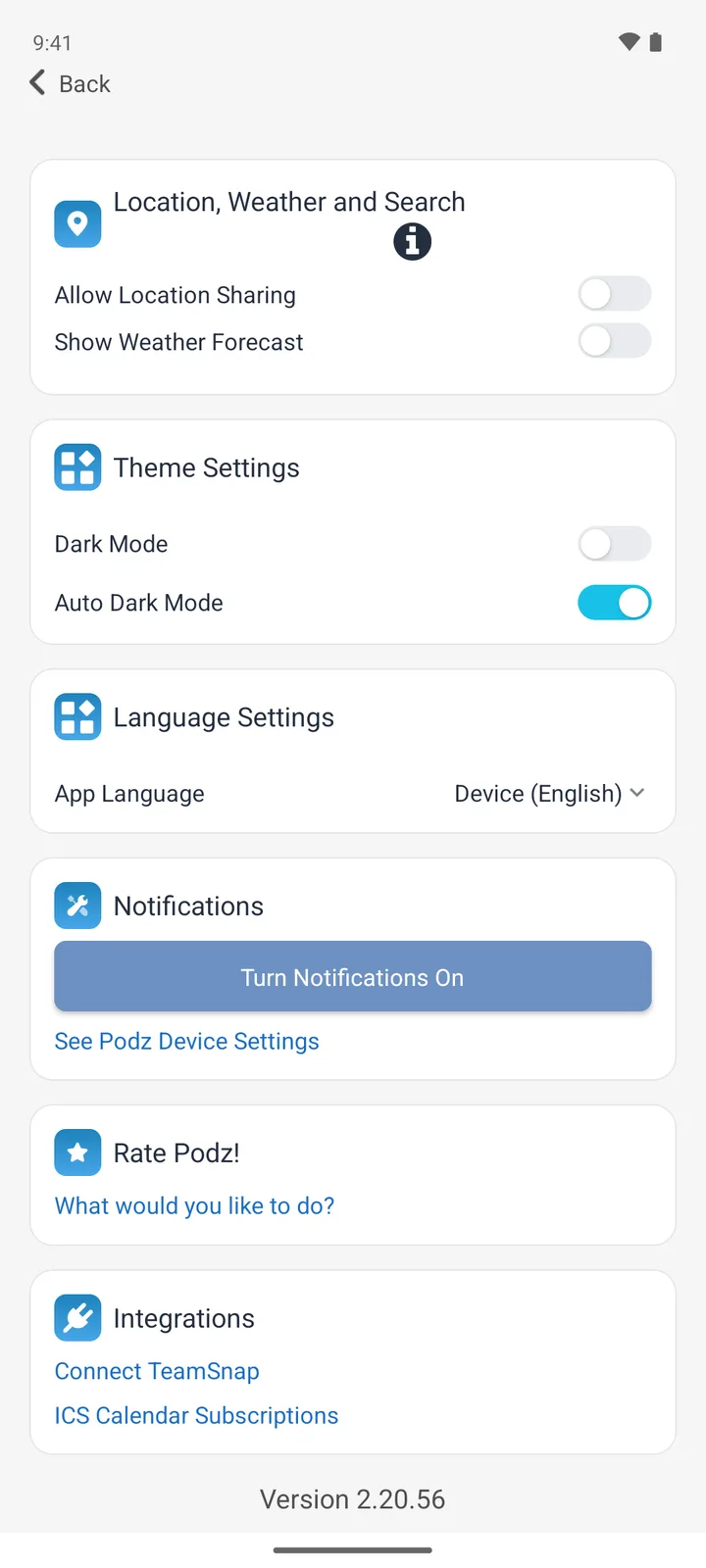
Apri App Settings: se compare Turn Notifications On, toccalo e consenti le notifiche. Poi verifica che il pod non sia silenziato e che l'evento abbia un avviso.
Passaggi
- Nel pod, apri il menu dell'app (l'icona dell'ingranaggio in alto a destra nella schermata del pod).
- Tocca App Settings.
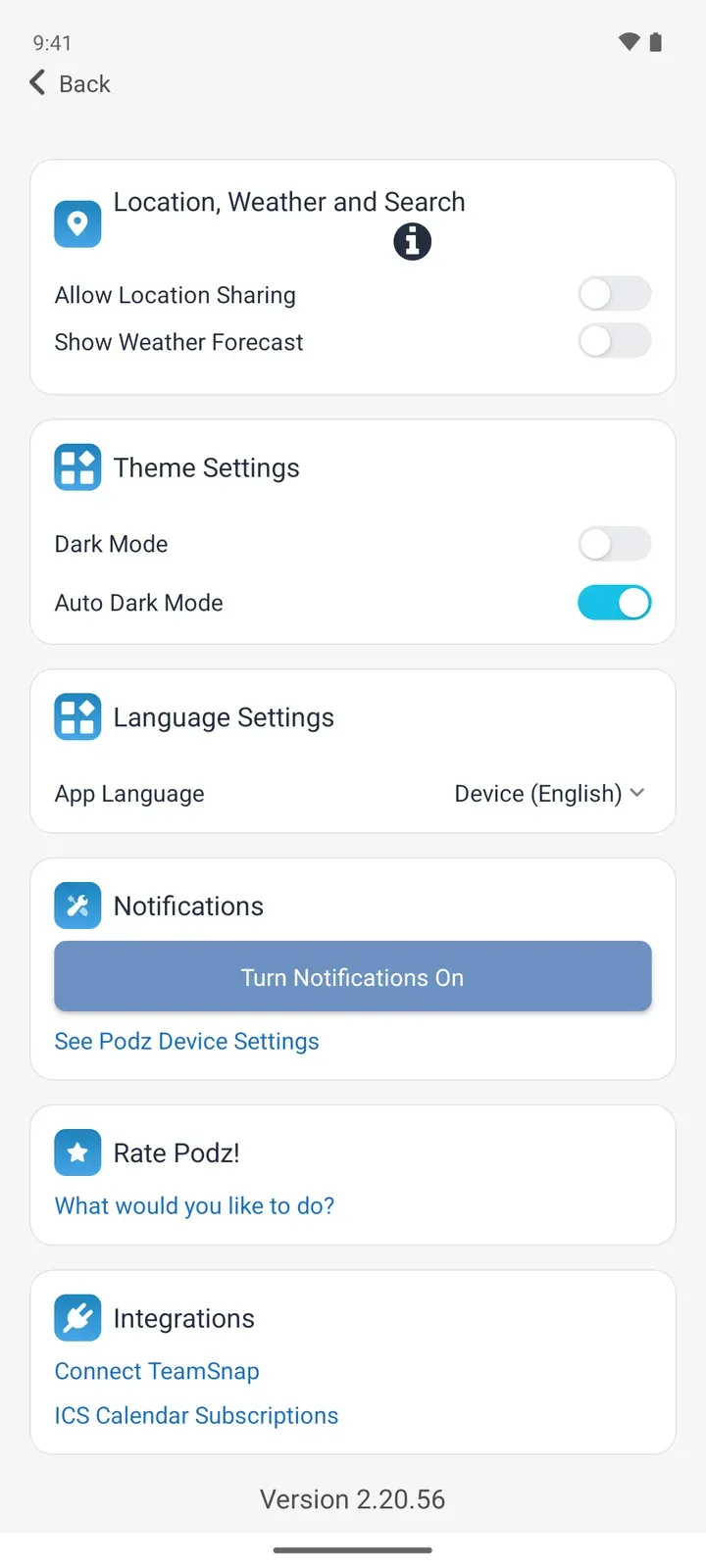
- In Notifications, tocca Turn Notifications On.
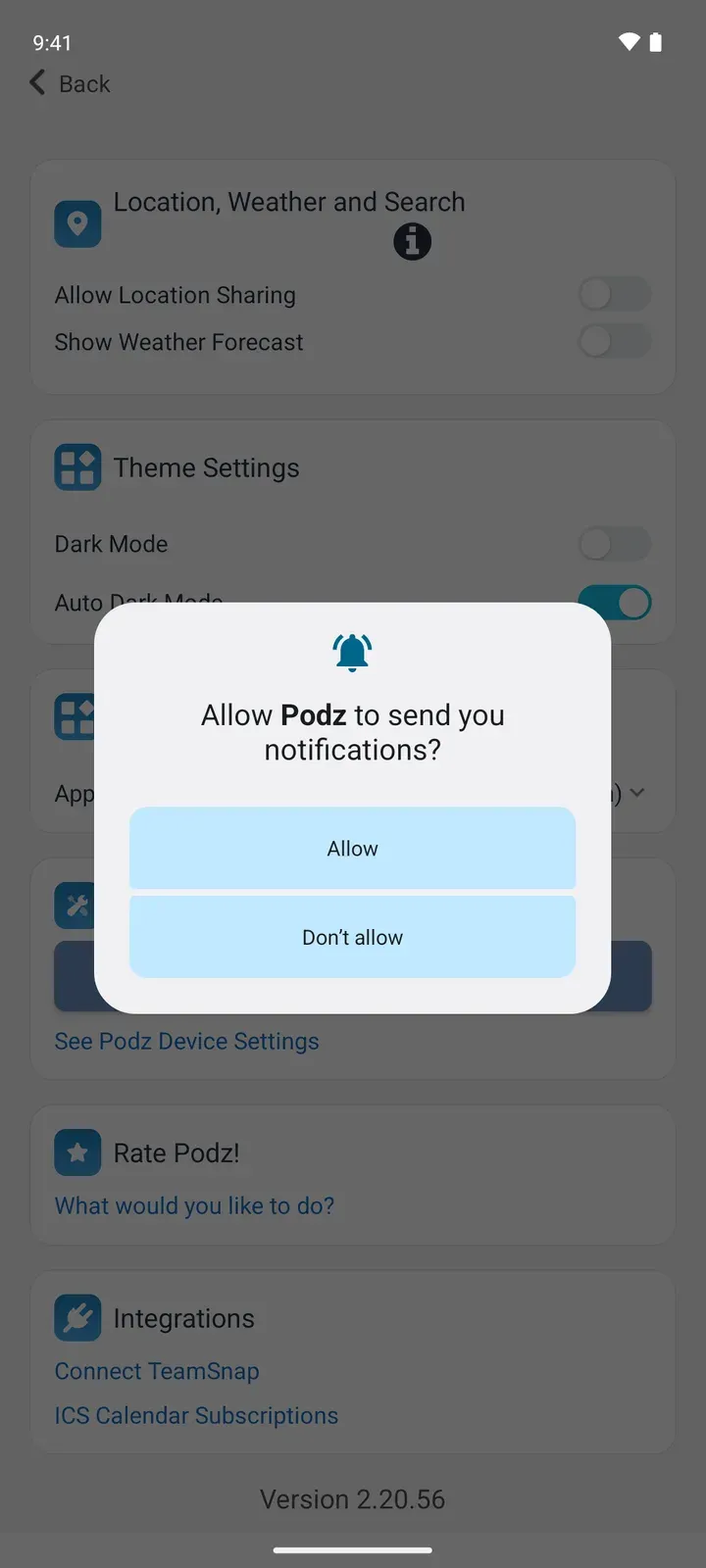
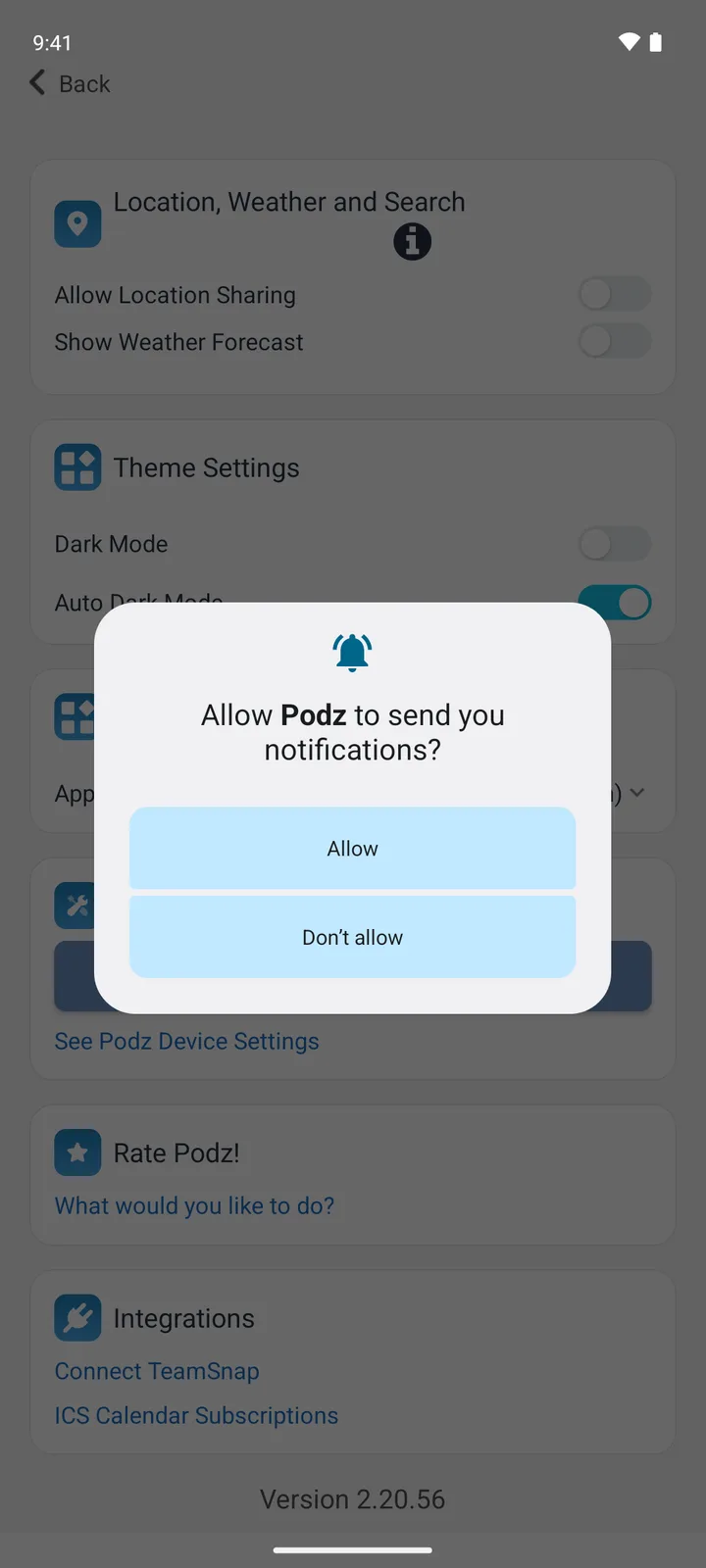
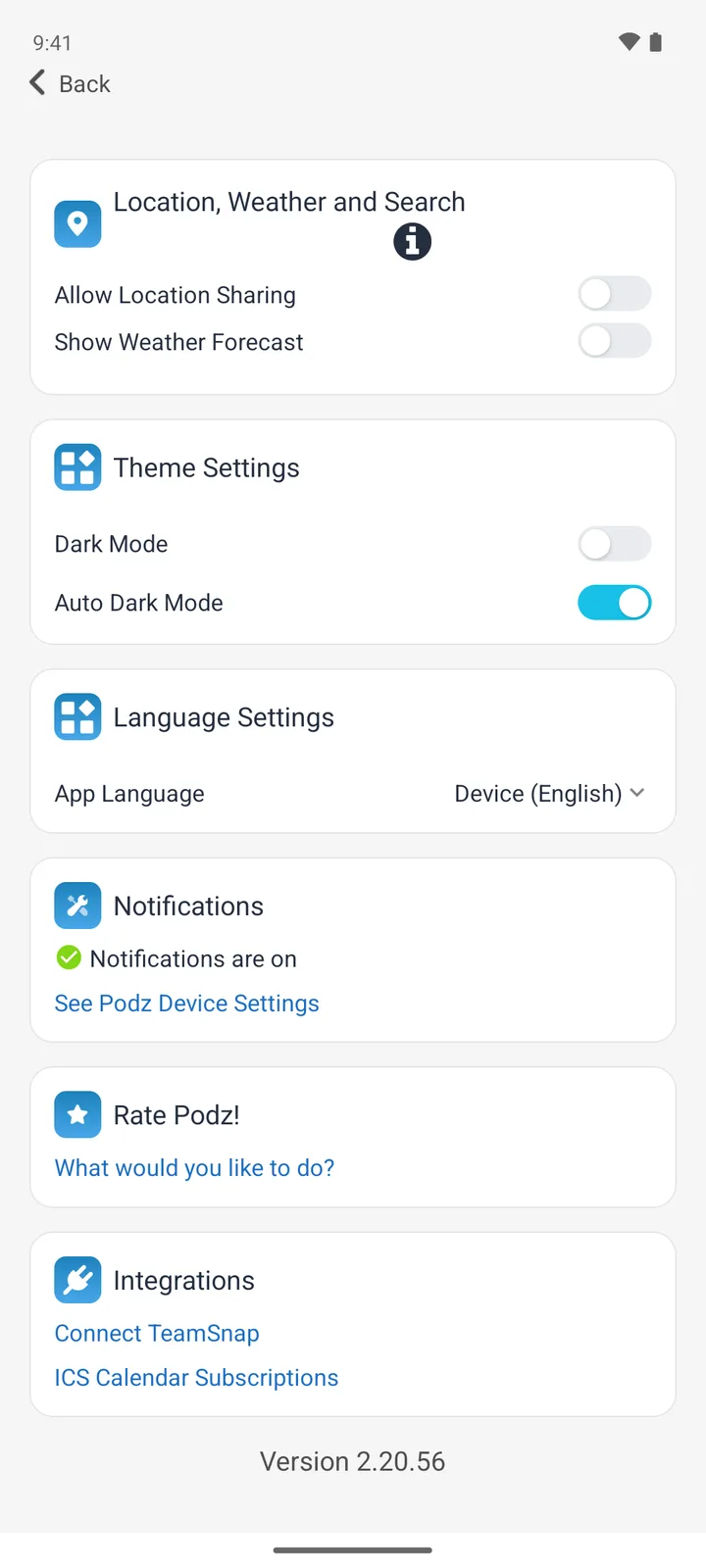
- Quando Android lo chiede, tocca Allow. Ora Notifications indica Notifications are on.
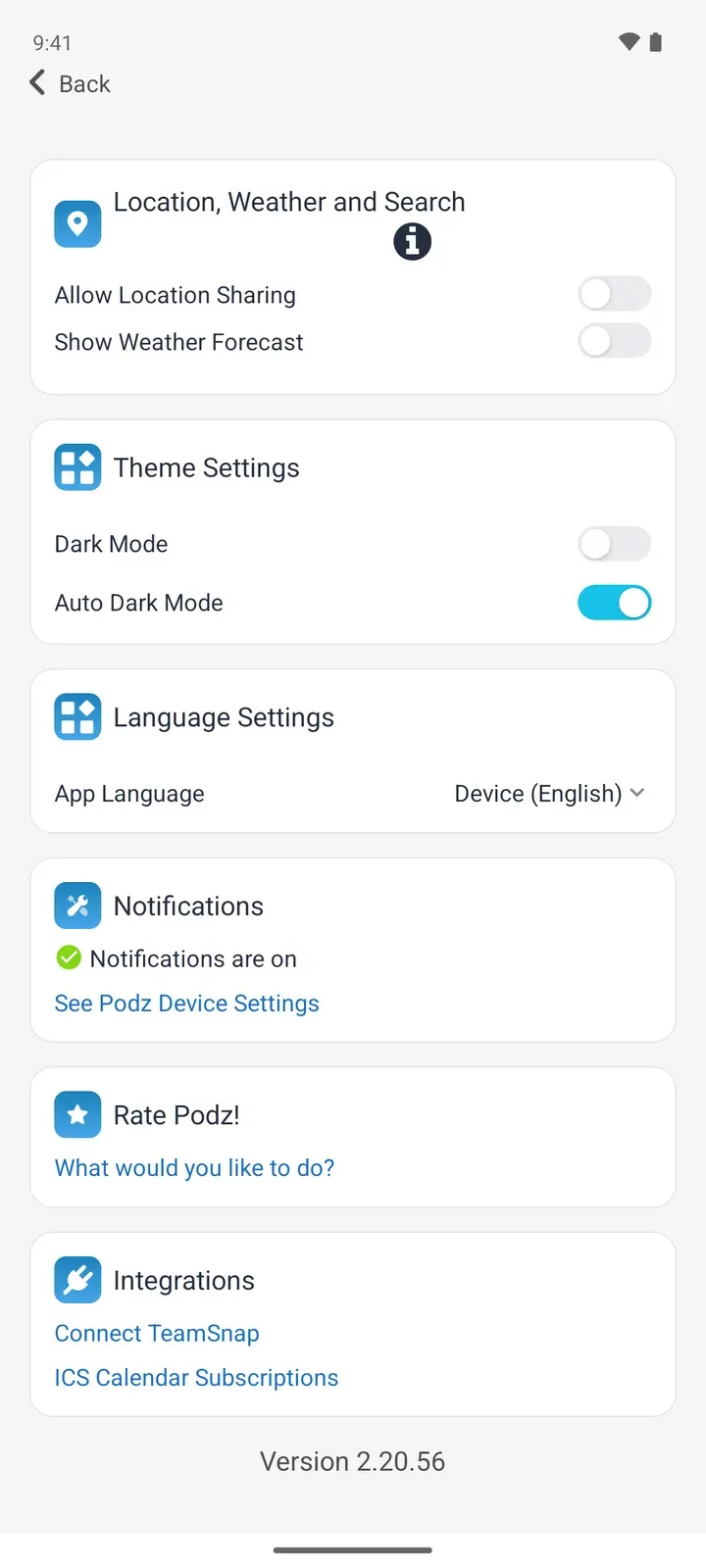
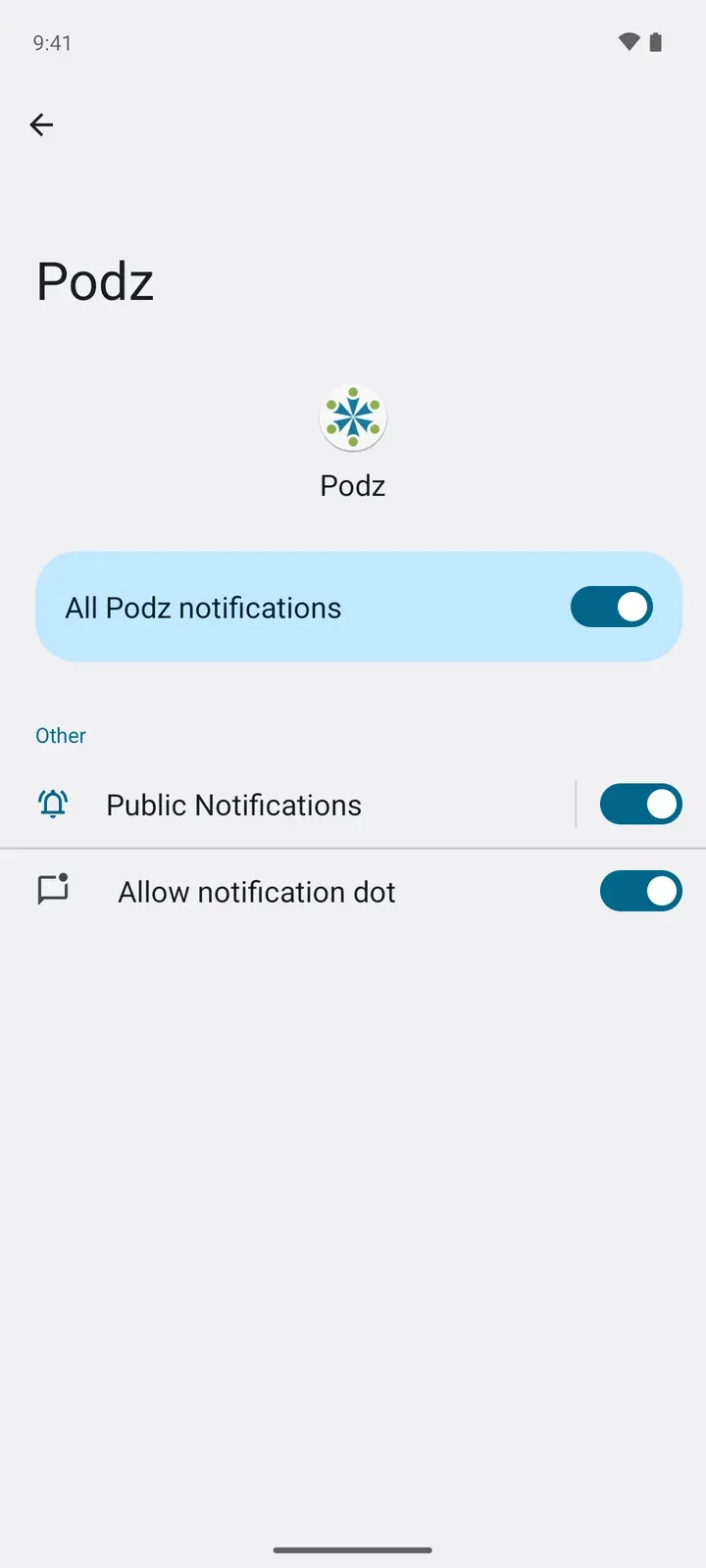
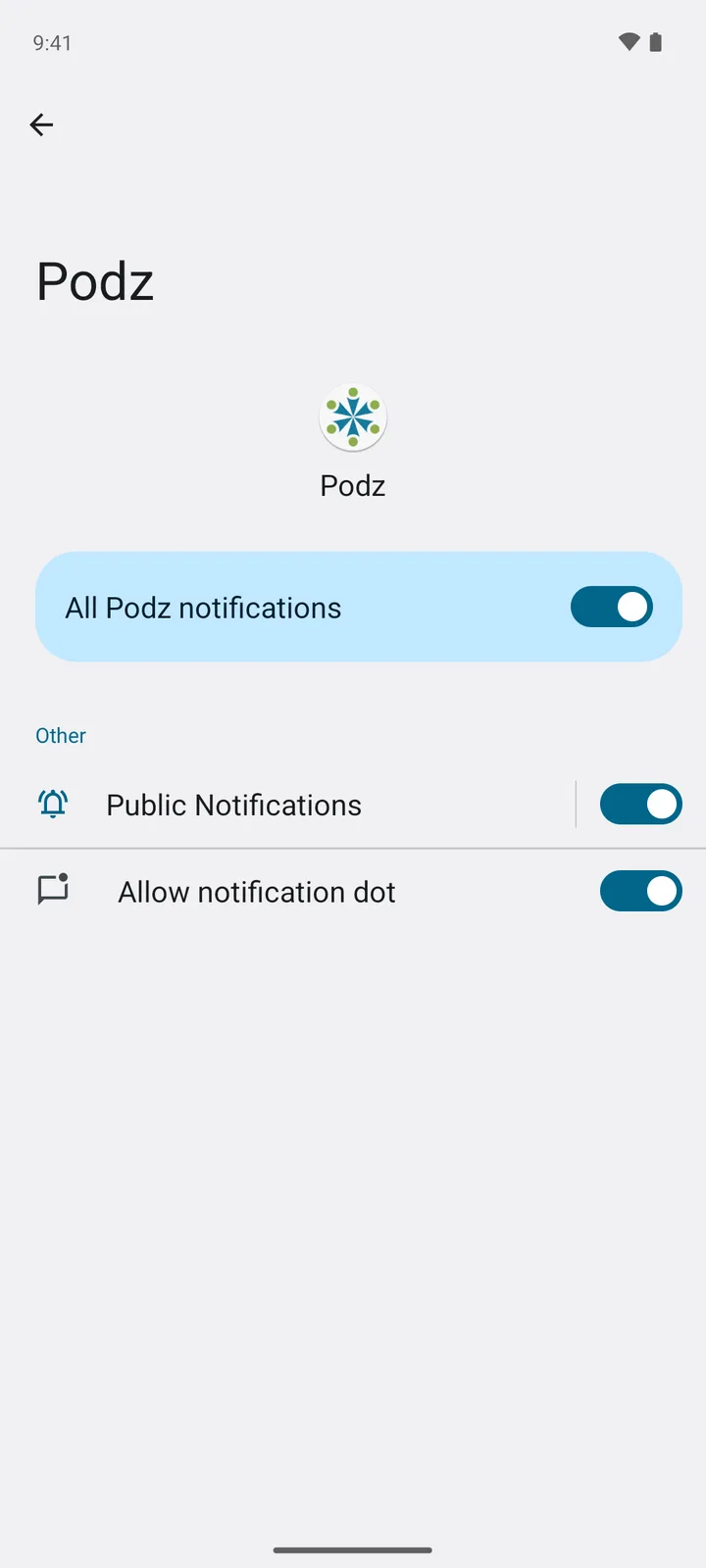
- Se le notifiche continuano a non arrivare, tocca See Podz Device Settings, poi Notifications, e controlla che All Podz notifications sia attivo.
Passaggi verificati su Android. Su iPhone le schermate potrebbero essere leggermente diverse. Verificato con Podz 2.20.56 il 16 nov 2026.
Buono a sapersi
Se le notifiche del telefono sono attive, controlla Silence This Pod in Pod Profile e l'avviso dell'evento. Durante la creazione trovi First Alert; modificando un evento salvato trovi Alert. Le guide correlate spiegano questi controlli. Le diciture Android possono variare in base al dispositivo e alla lingua del telefono.