
Why am I not getting Podz notifications?
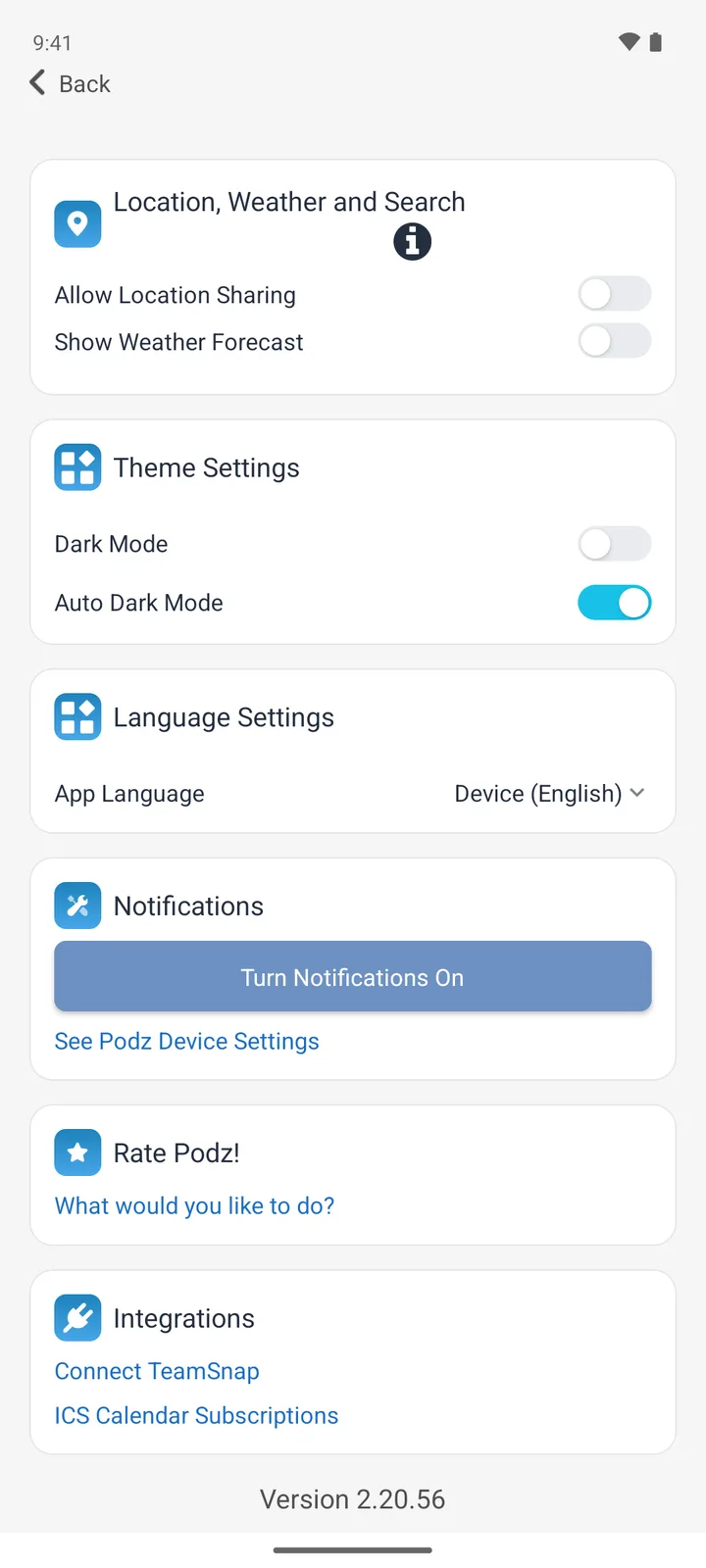
Open App Settings: if Turn Notifications On shows, tap it and allow notifications. Then check whether the pod is muted and the event has an alert.
Steps
- In the pod, open the app menu (the gear icon at the top right of a pod screen).
- Tap App Settings.
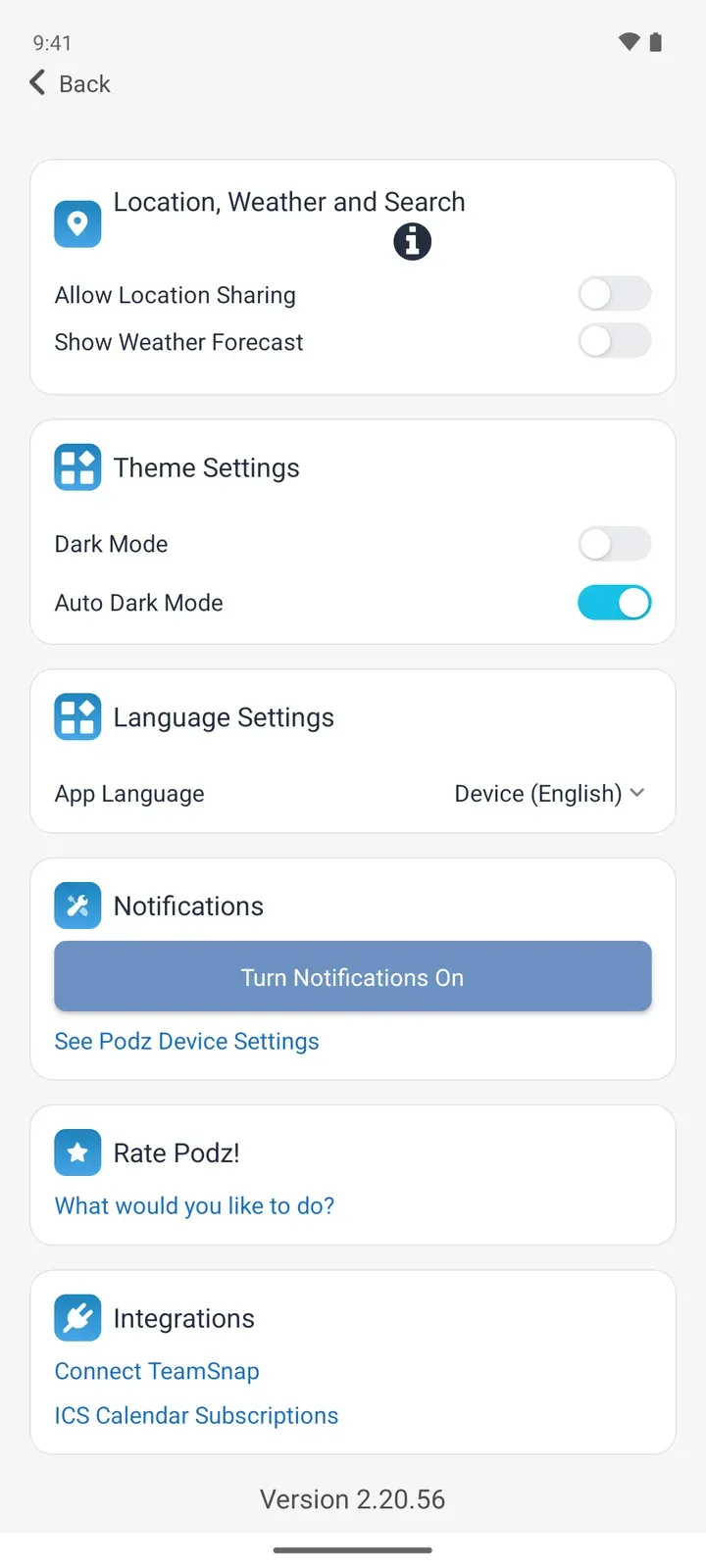
- Under Notifications, tap Turn Notifications On.
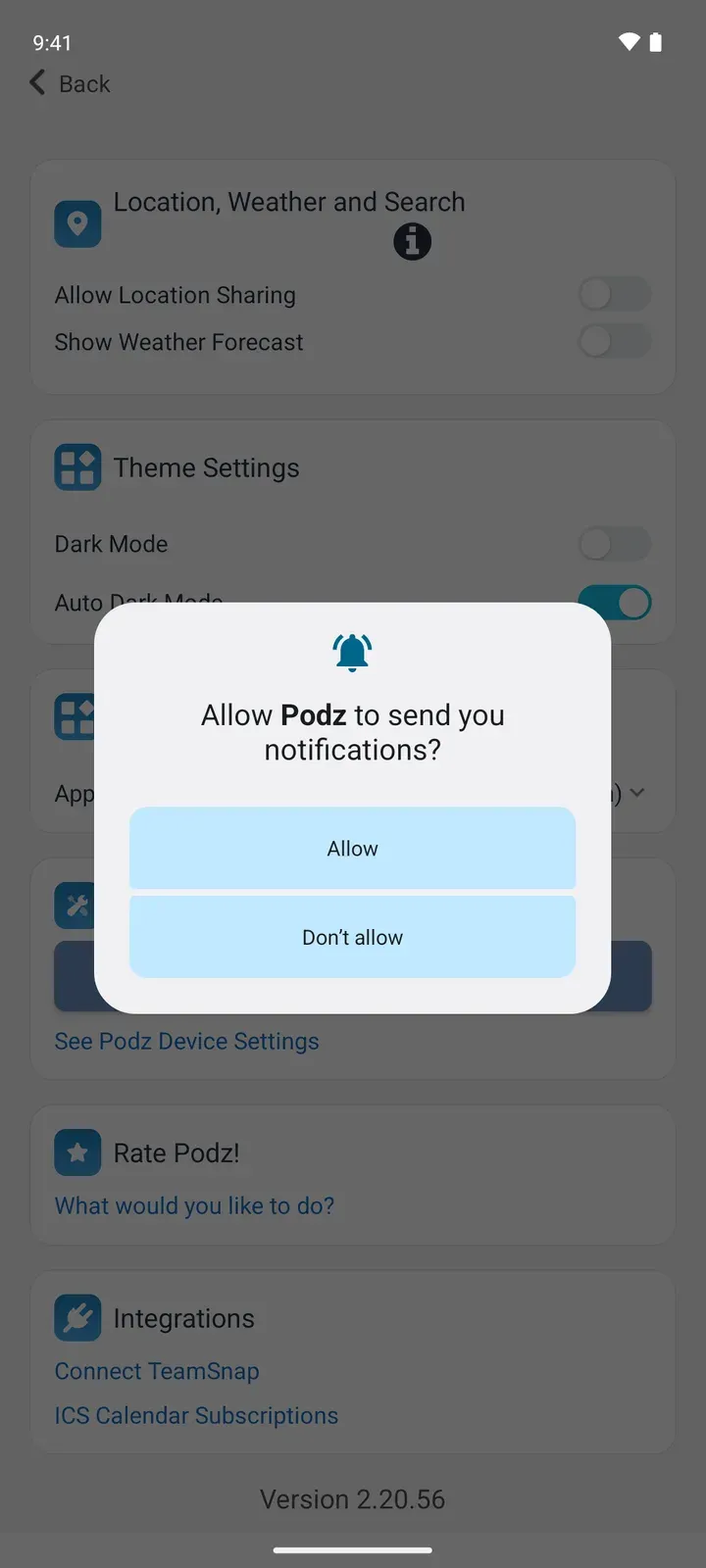
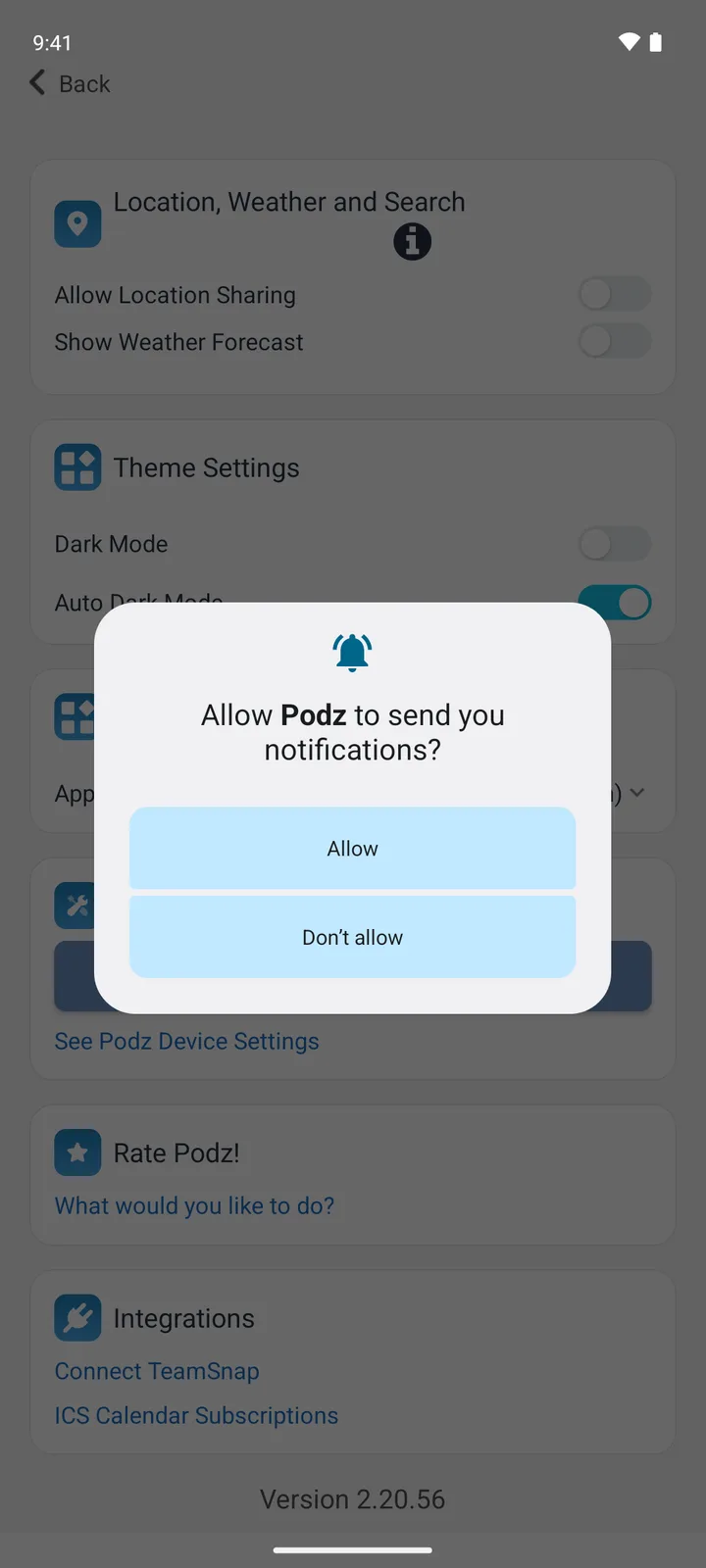
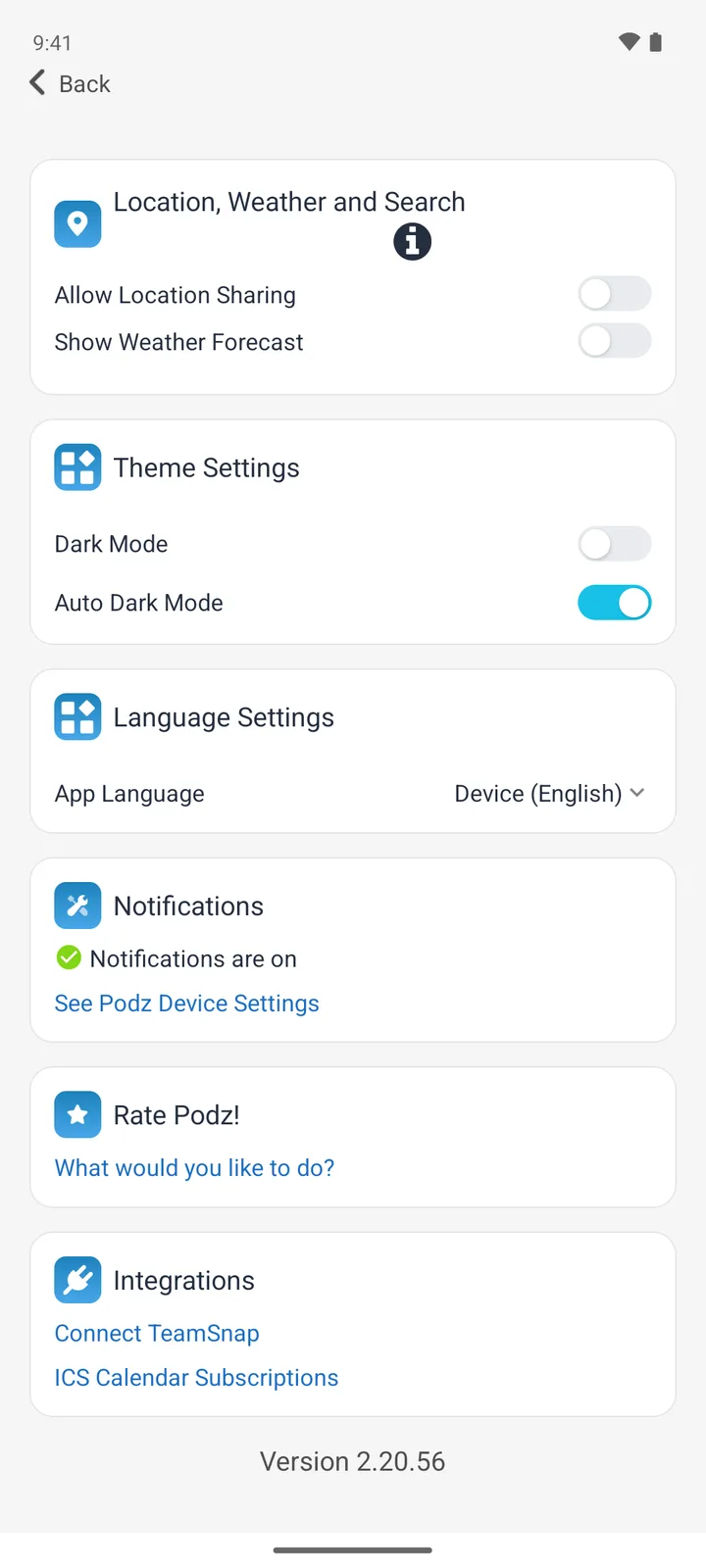
- When Android asks, tap Allow. Notifications now says Notifications are on.
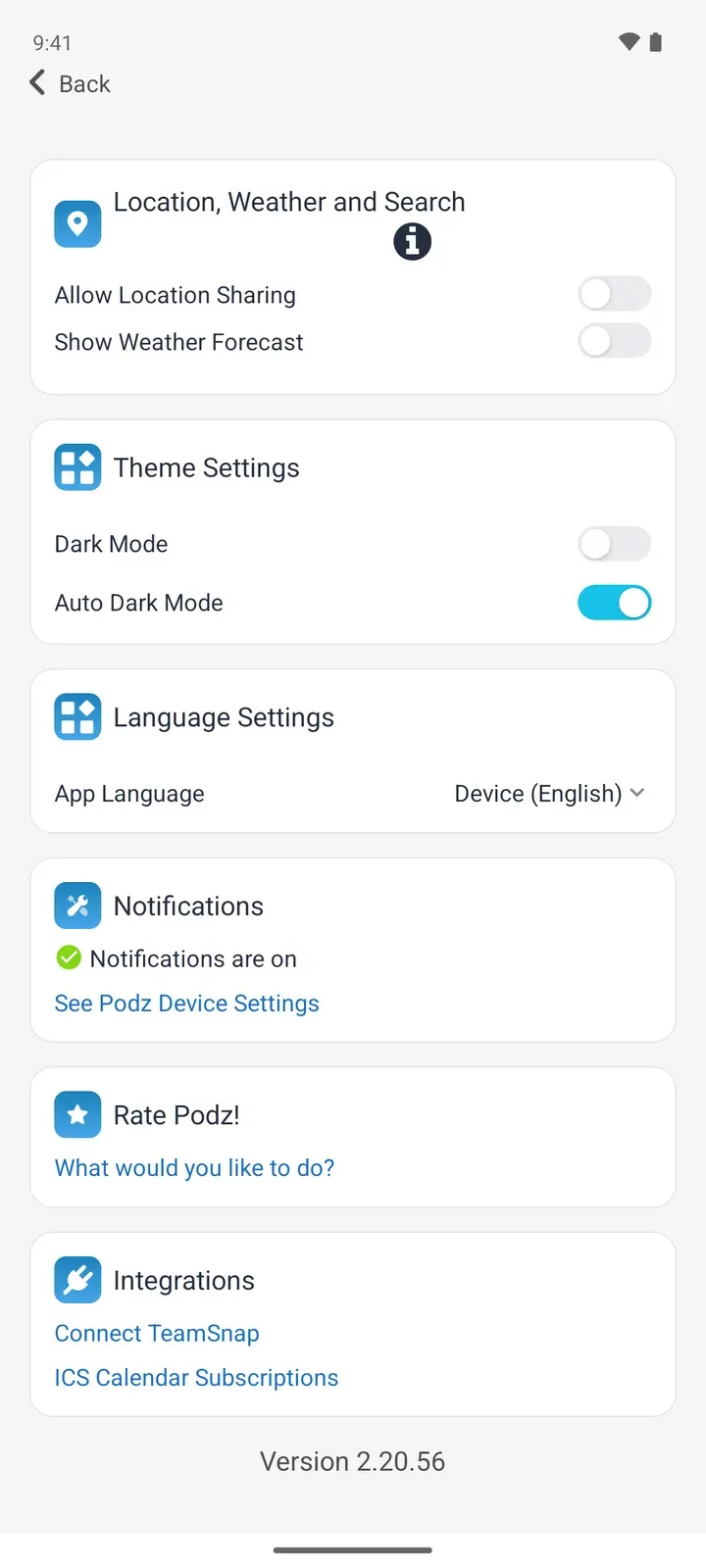
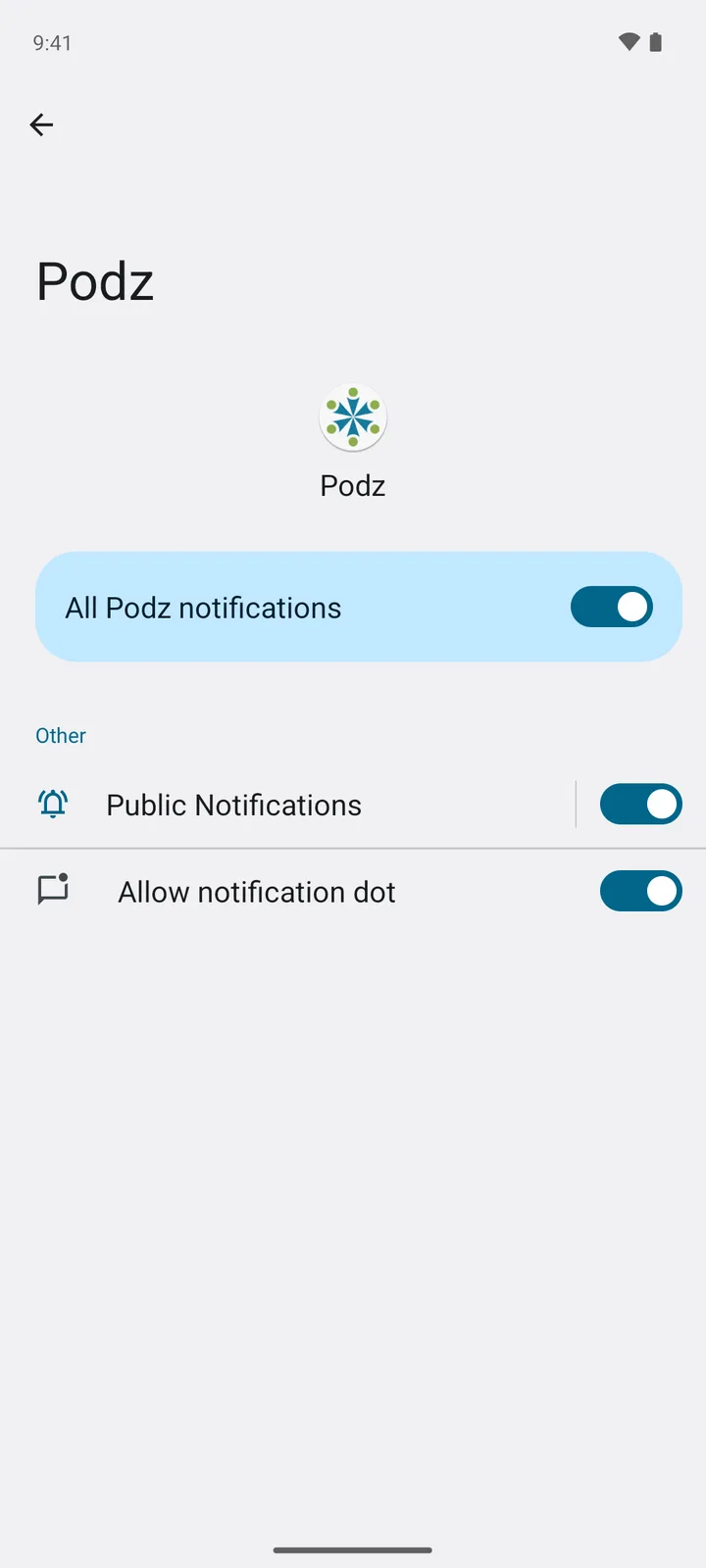
- If notifications still don't arrive, tap See Podz Device Settings, then Notifications, and check that All Podz notifications is on.
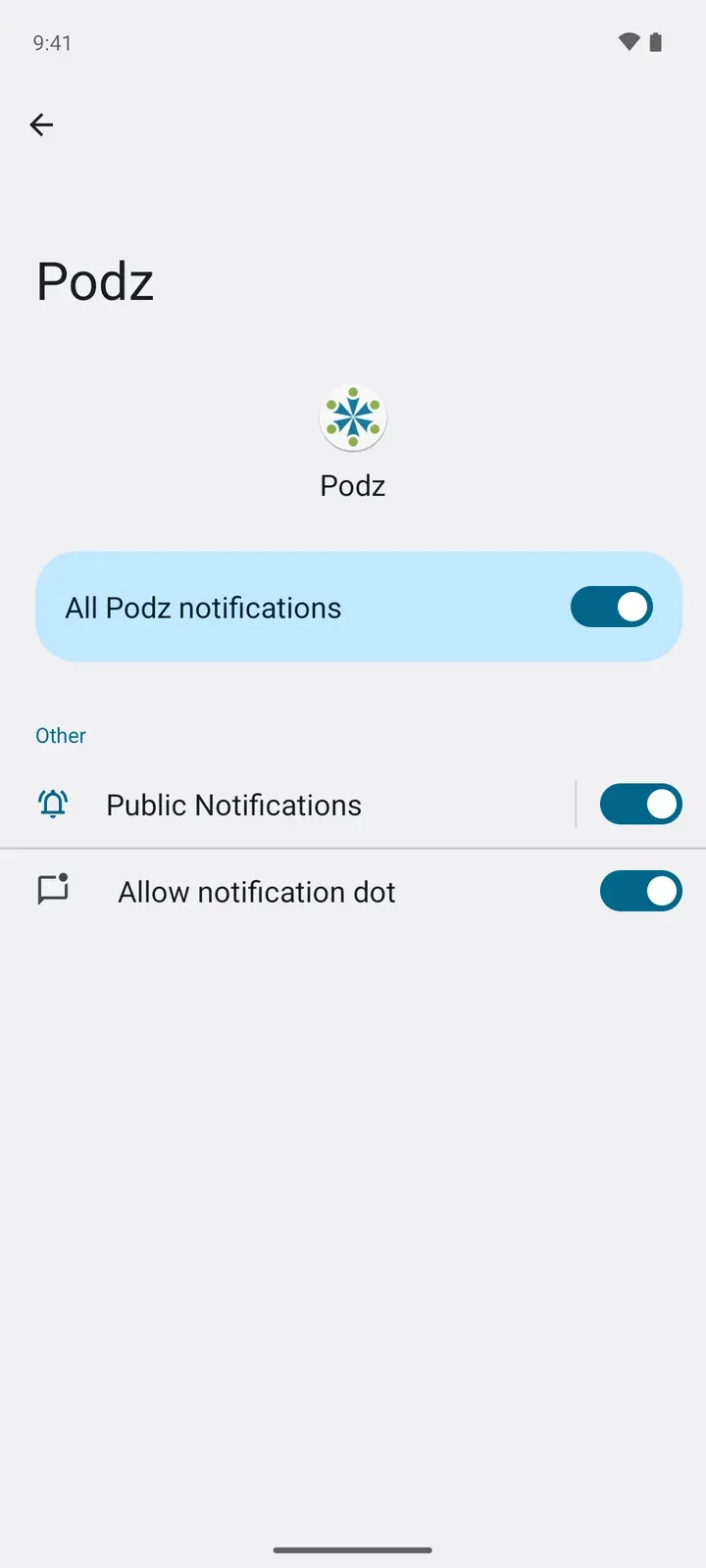
Steps checked on Android; iPhone screens may look slightly different. Checked in Podz 2.20.56 on Nov 16, 2026.
Good to know
If phone notifications are enabled, check Silence This Pod in Pod Profile and the event’s alert. Creating an event uses First Alert; editing a saved event uses Alert. The related guides explain those controls. Android’s wording can vary by device and phone language.
Still stuck? Get help from Podz, or search all the guides.