
How do I make month view my default screen in Podz?
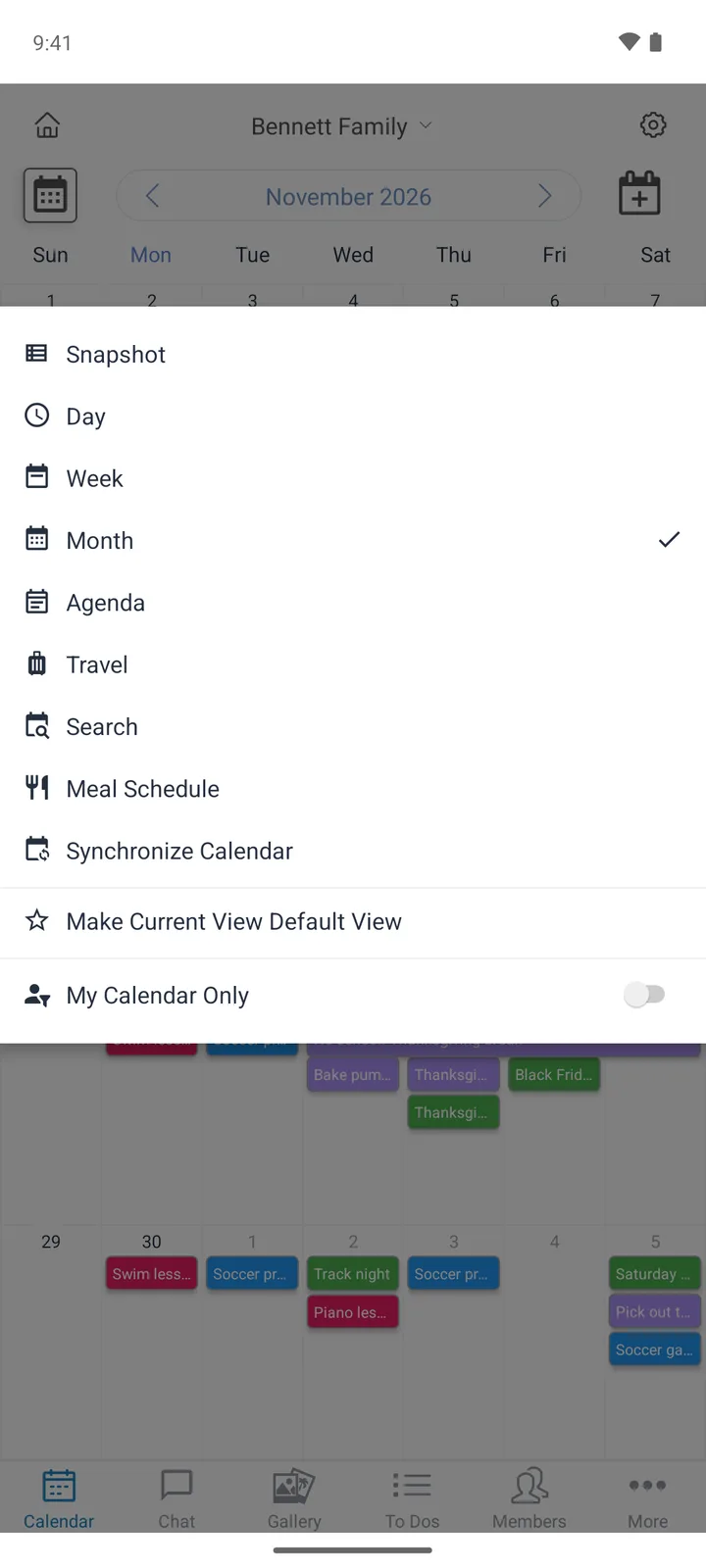
Save Month as this pod's default to see school, activities and family plans together when you open its calendar. Choose Month, then use Make Current View Default View in the view menu.
Steps
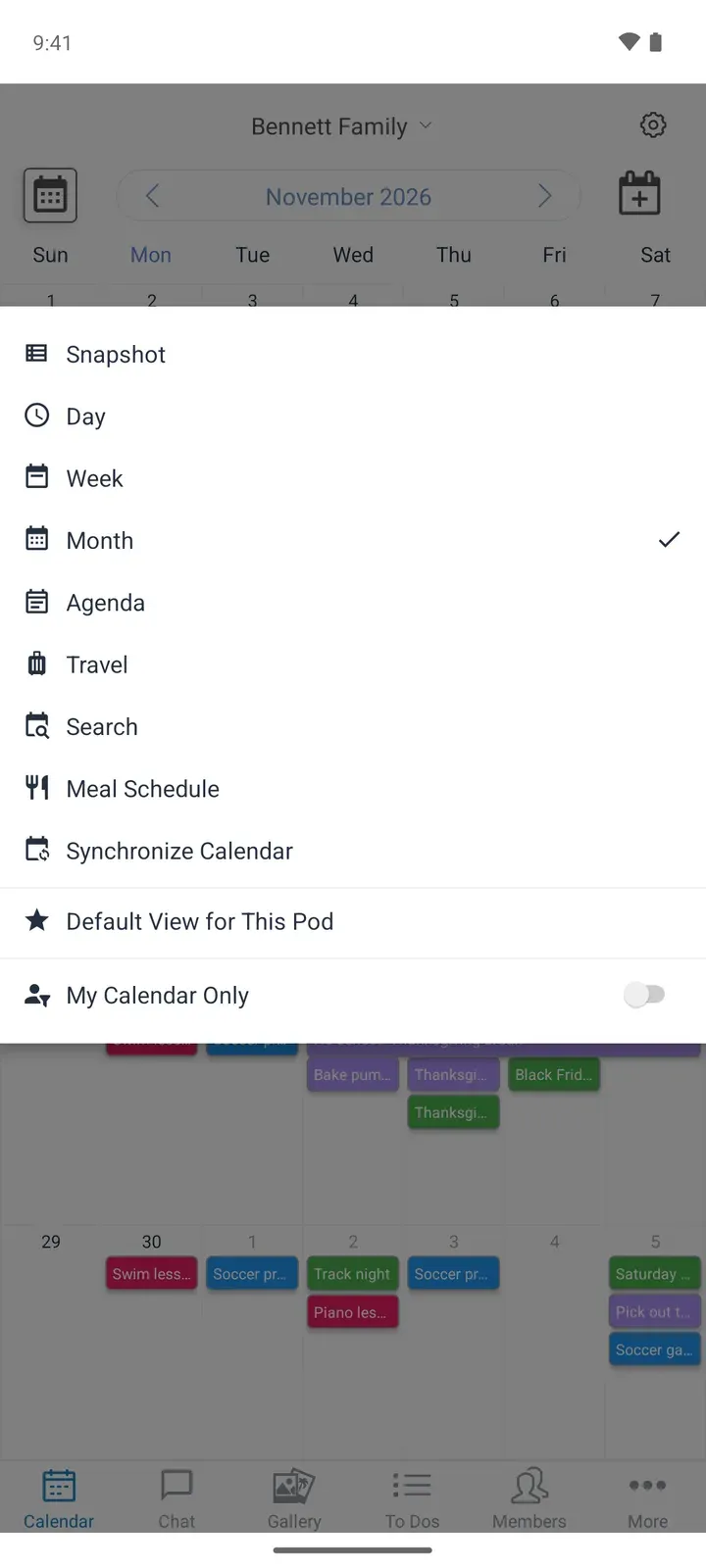
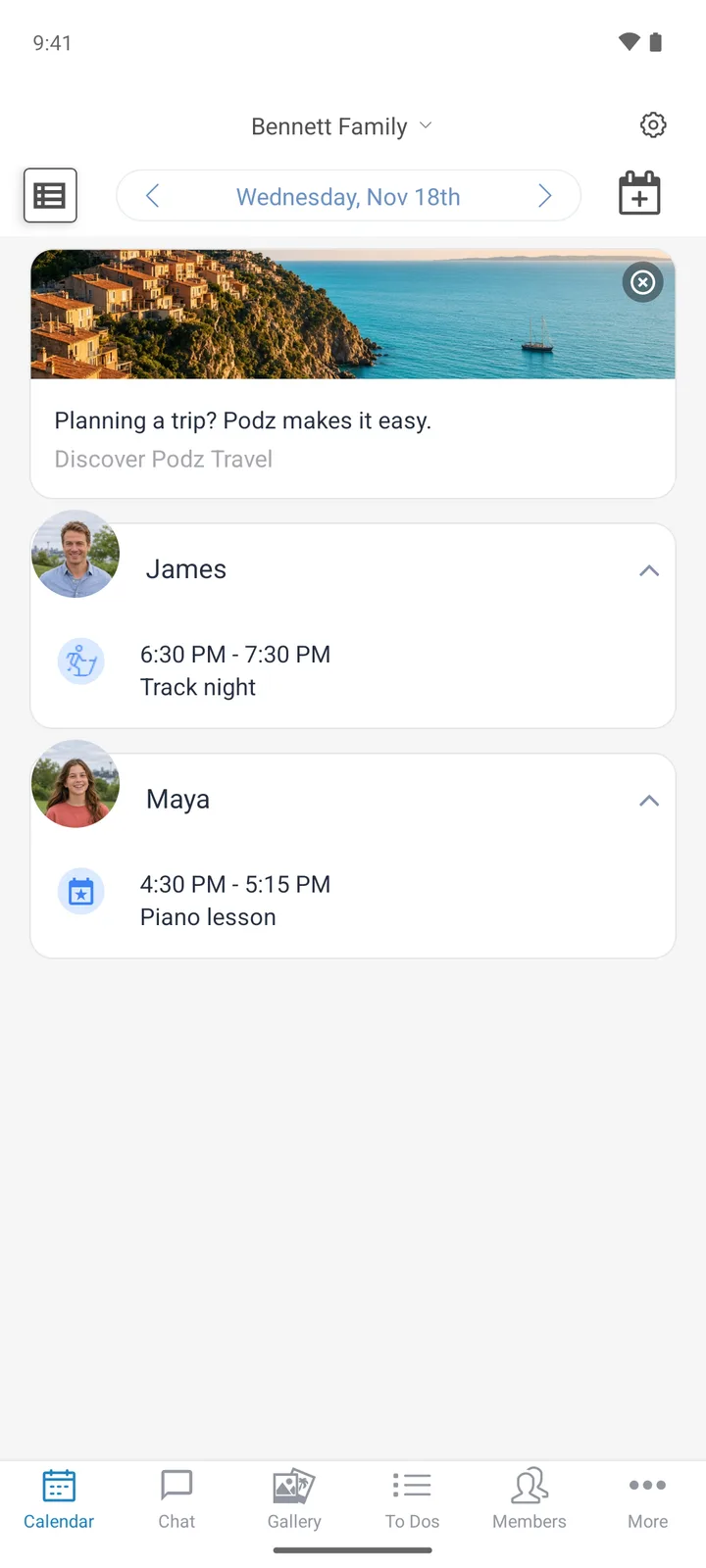
- In your family pod, tap Calendar.
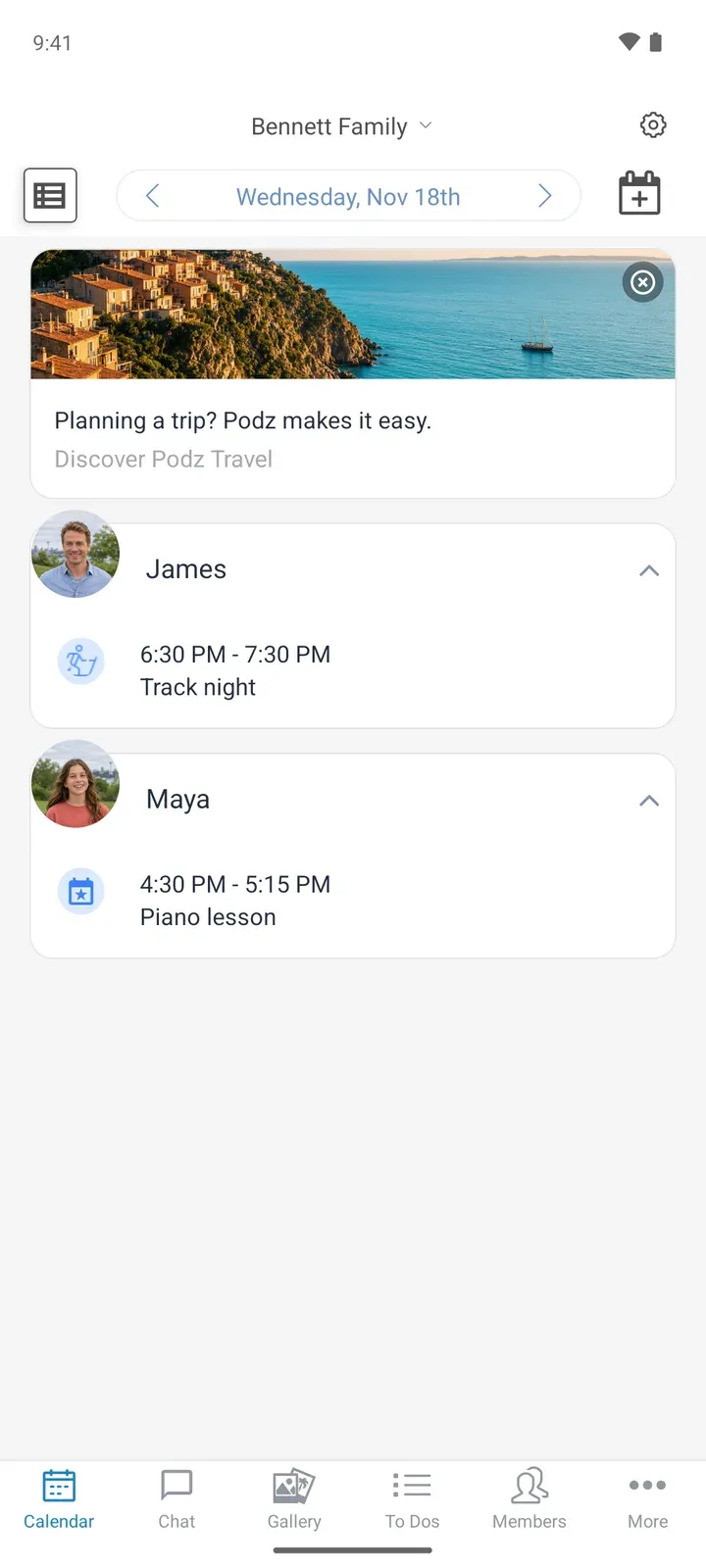
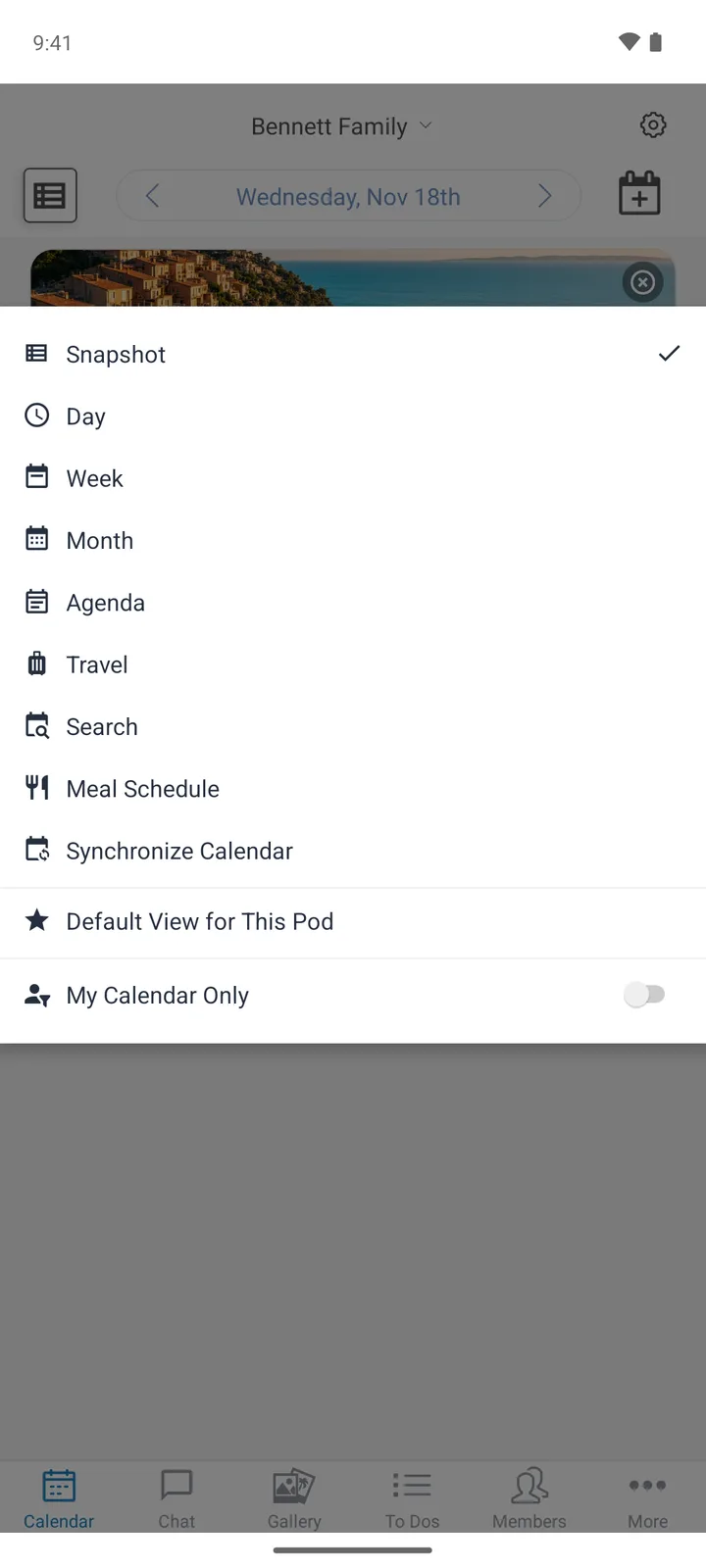
- Tap the calendar view button above the calendar on the left.
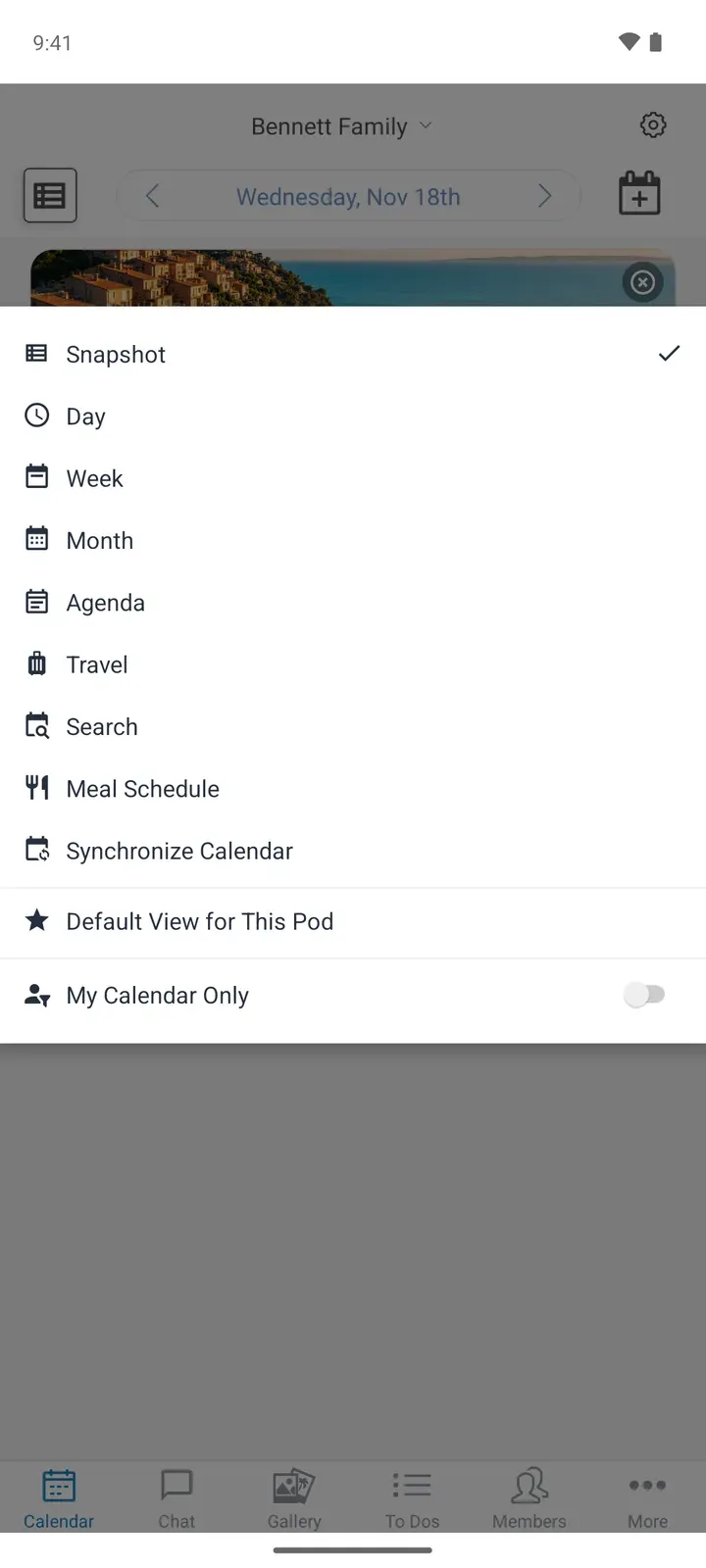
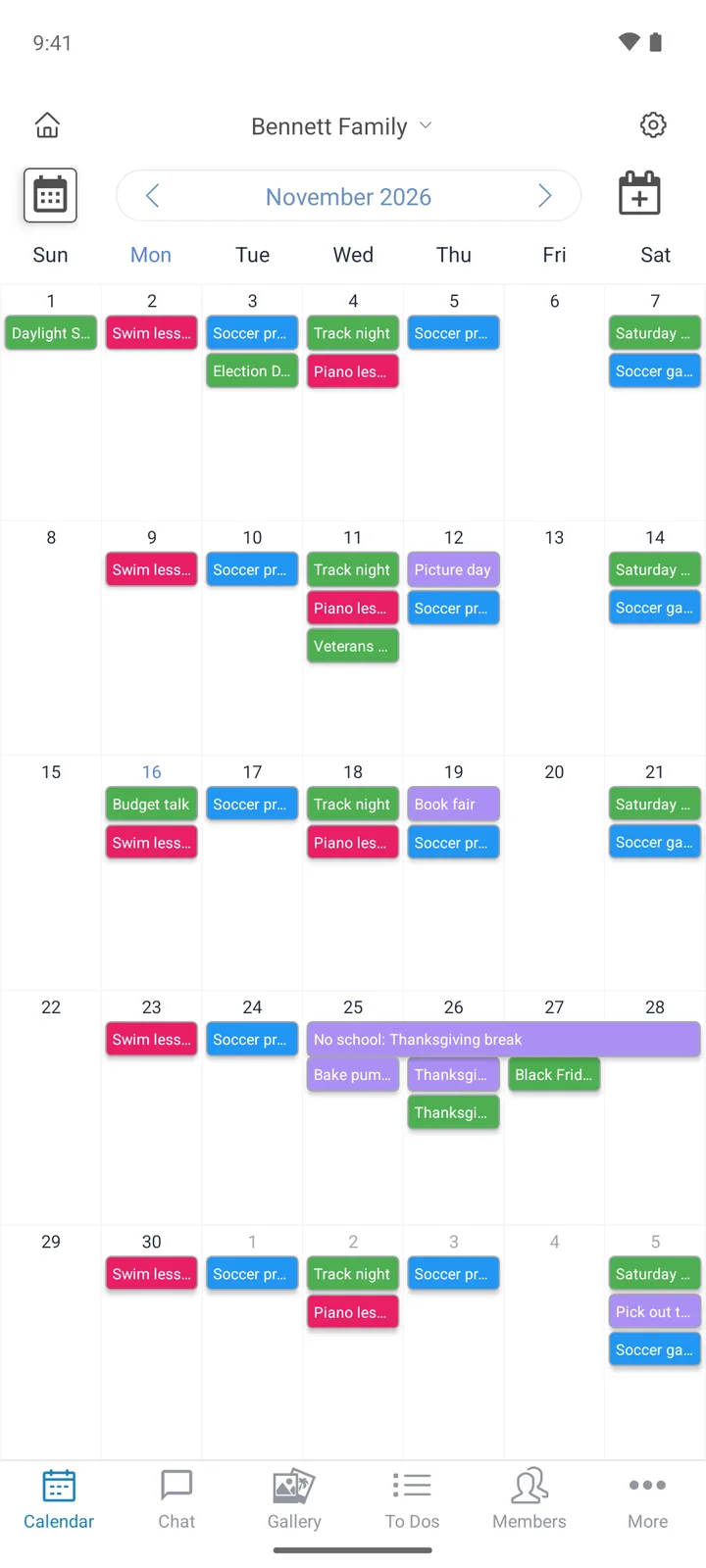
- Tap Month.
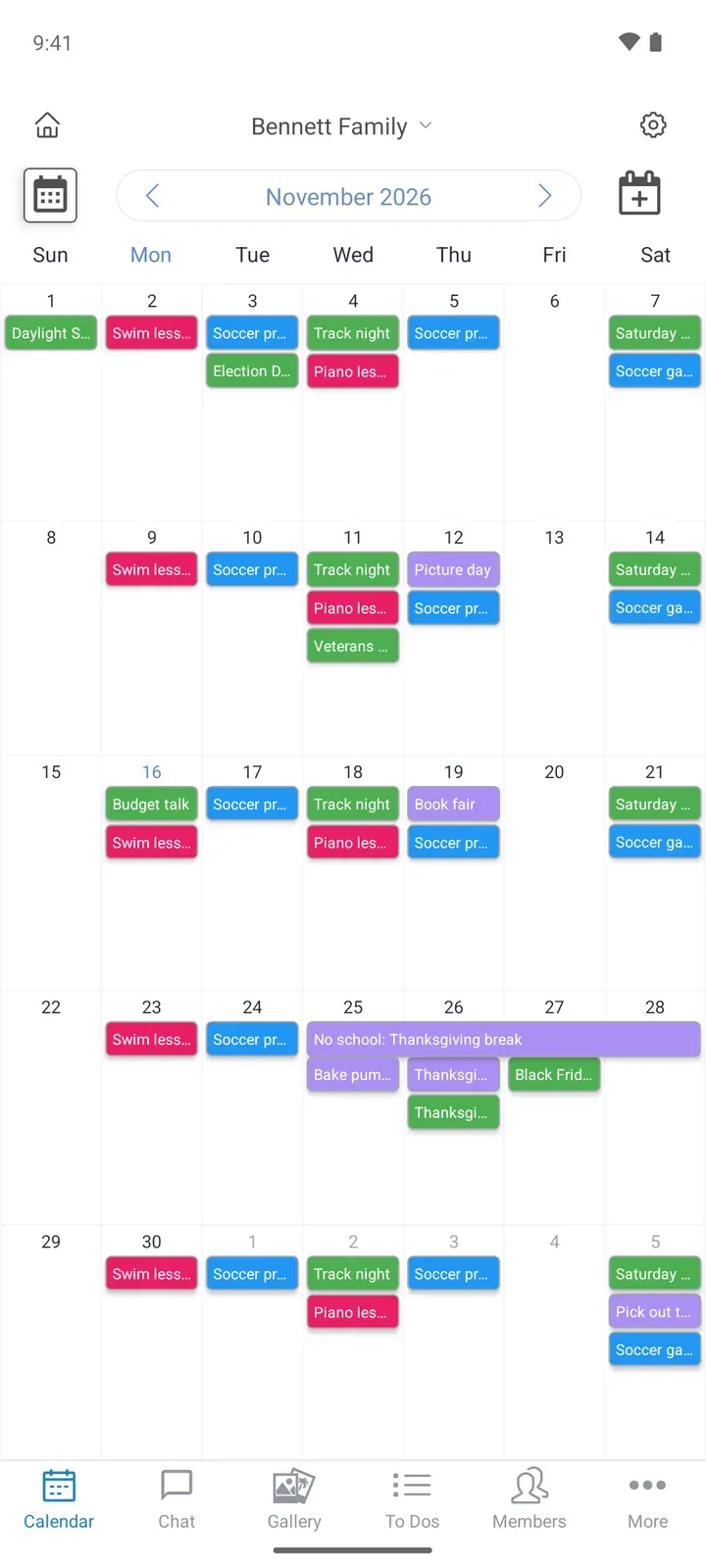
- Open the calendar view menu again.
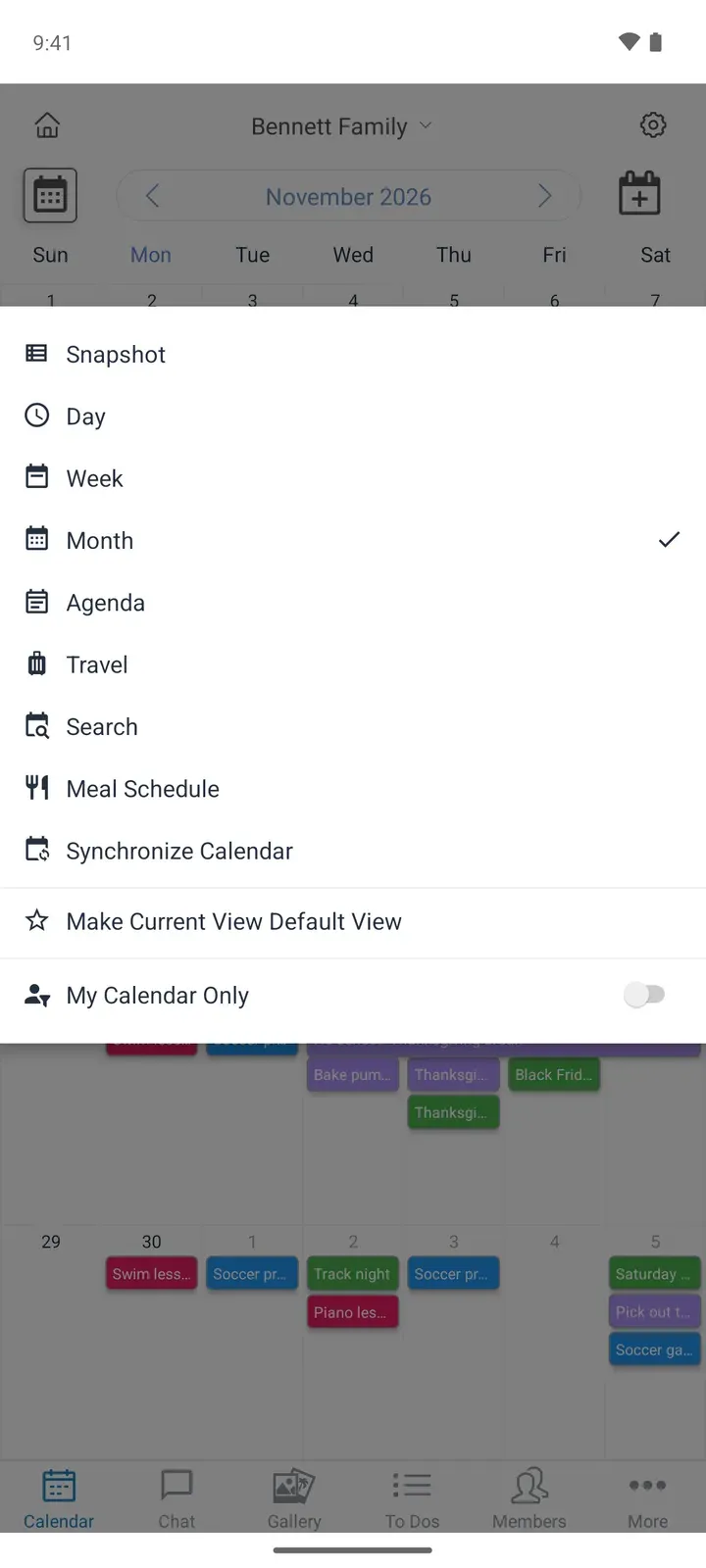
- Tap Make Current View Default View.
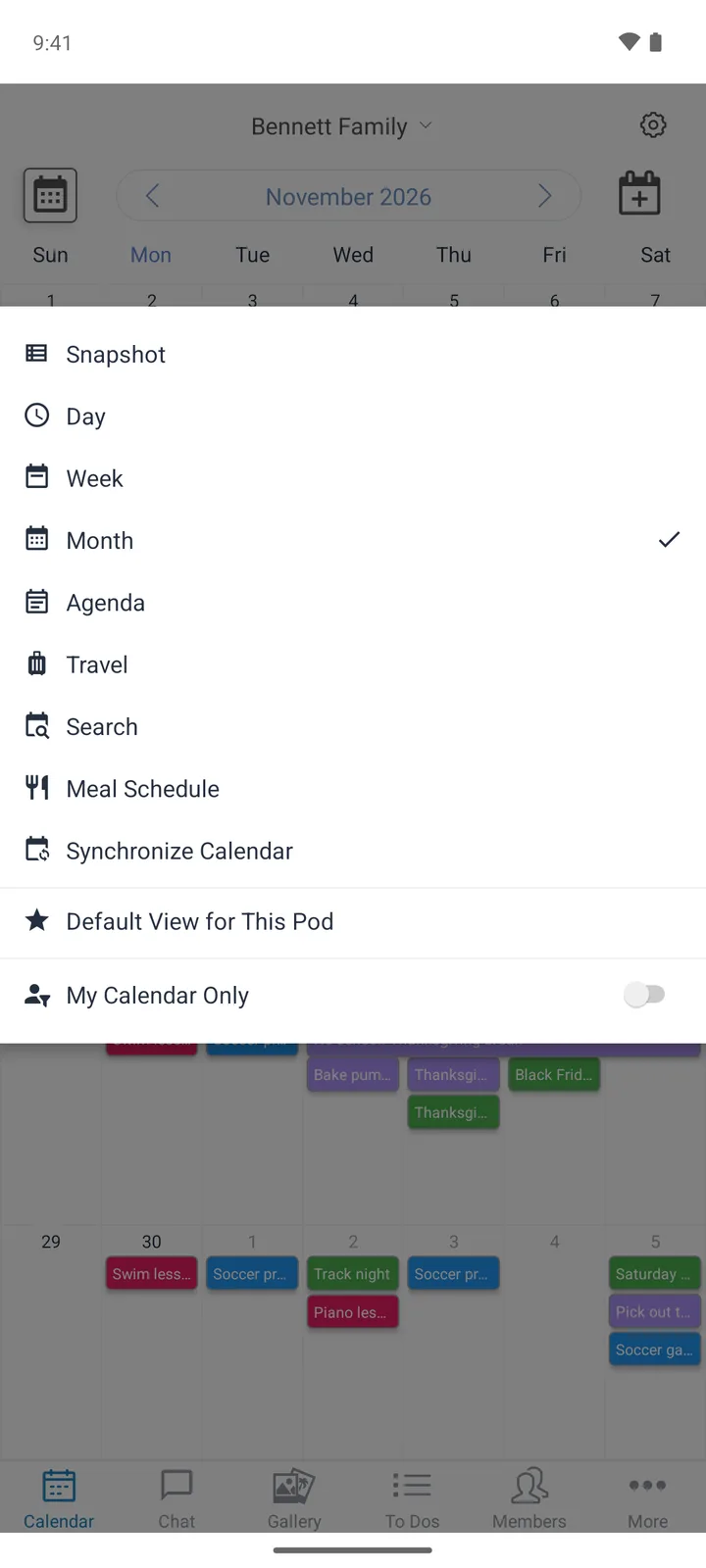
- Reopen the menu to confirm Default View for This Pod.
Steps checked on Android; iPhone screens may look slightly different. Checked in Podz 2.20.56 on Nov 16, 2026.
Good to know
The default belongs to this pod, so repeat these steps in each pod you use. Selecting Month changes the current view; Make Current View Default View saves it for later.
If the menu already says Default View for This Pod, the current view is saved. You can stop there.
Still stuck? Get help from Podz, or search all the guides.