
How do I add an event with a reminder and a repeat?
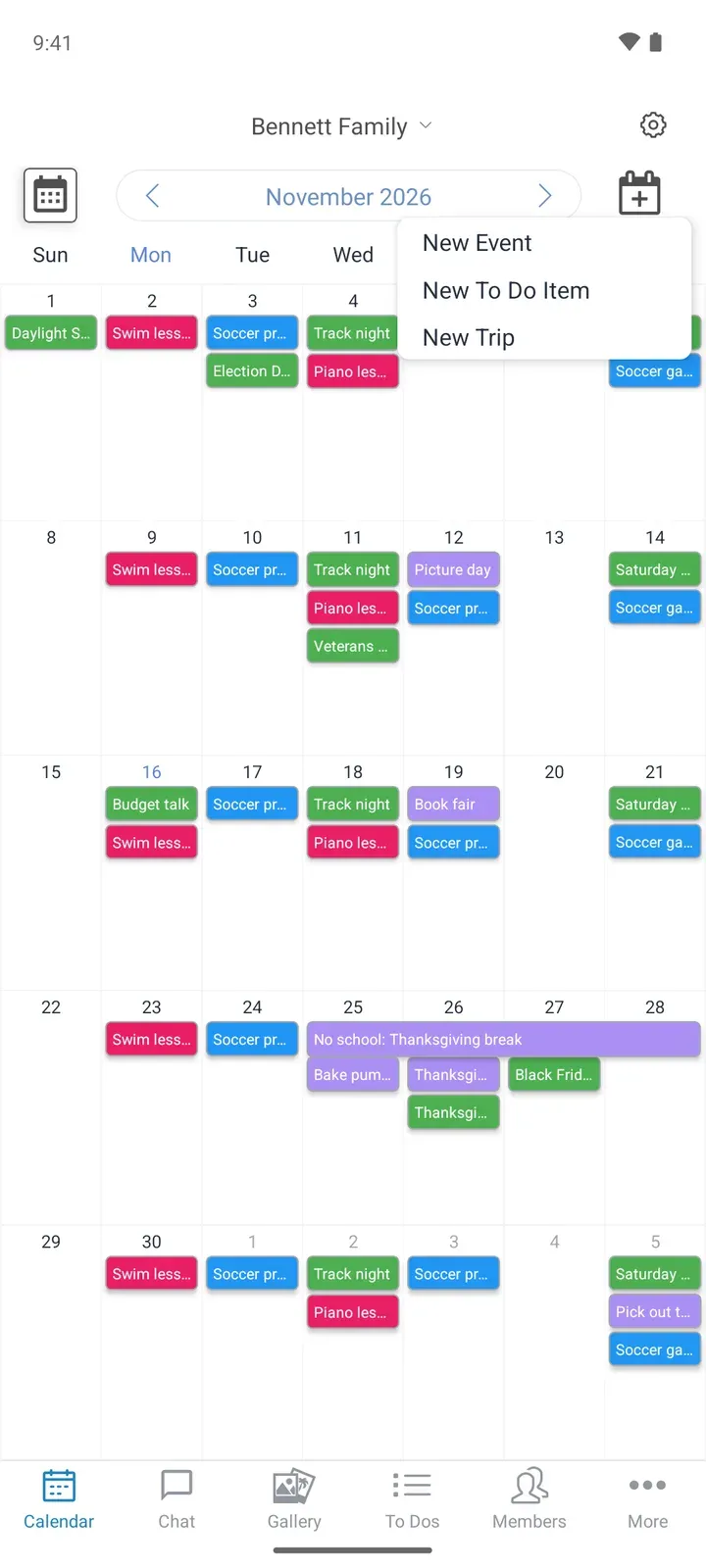
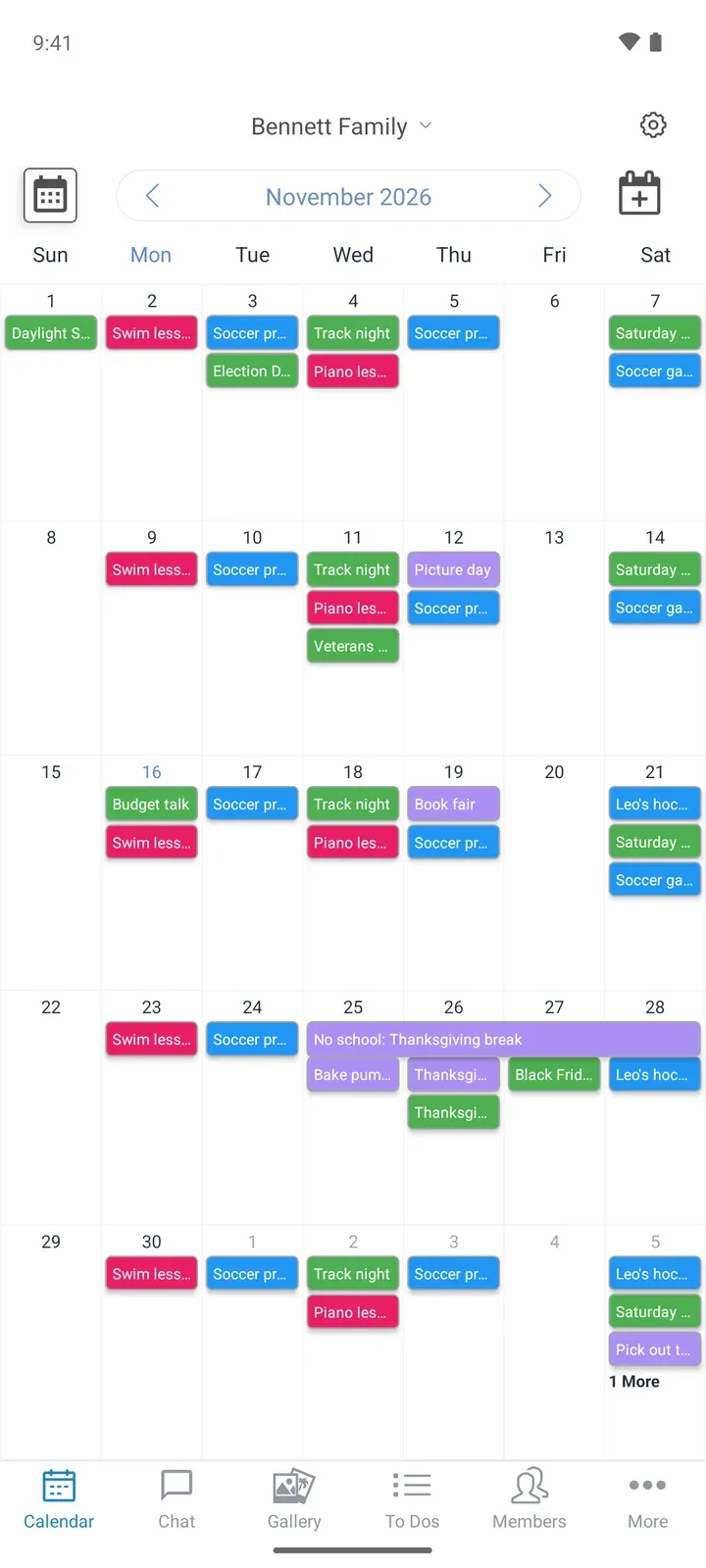
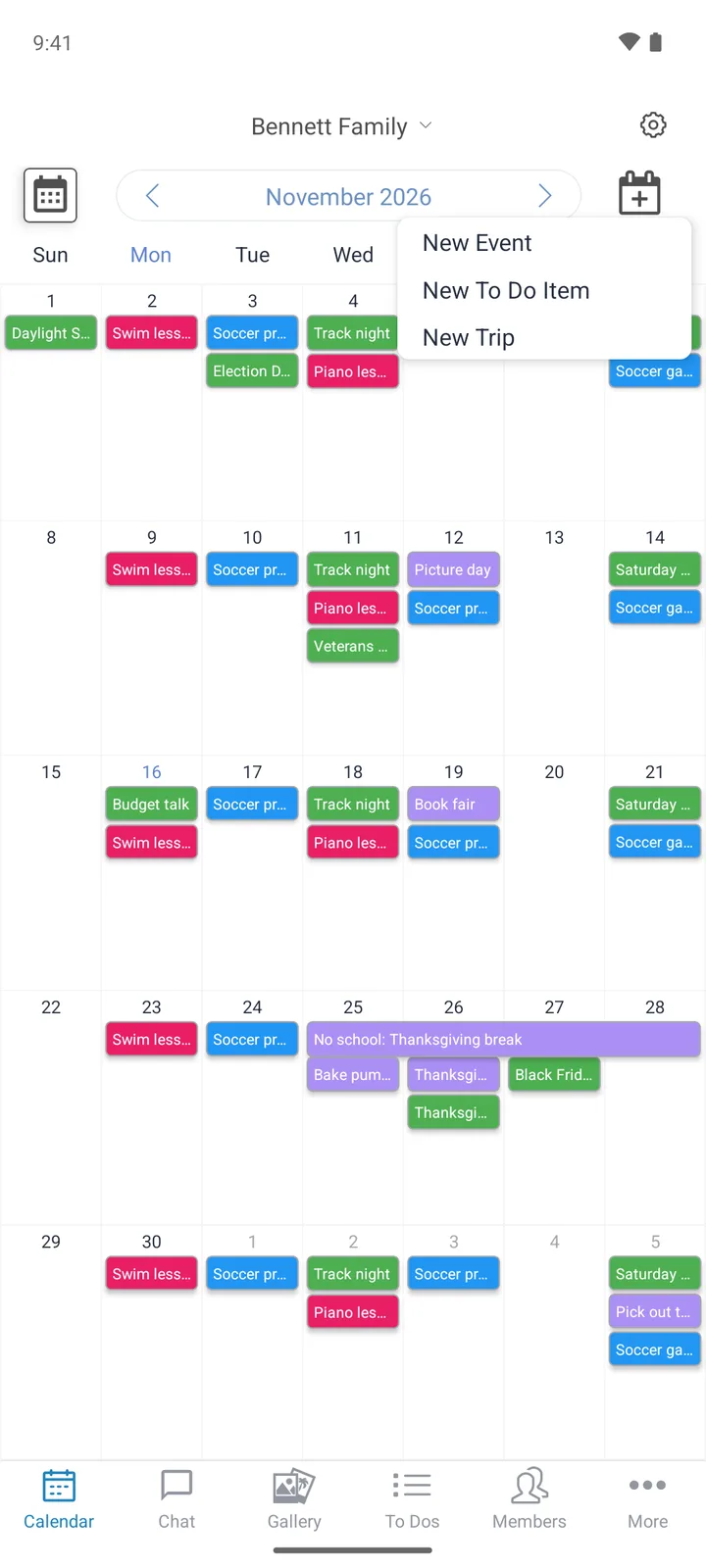
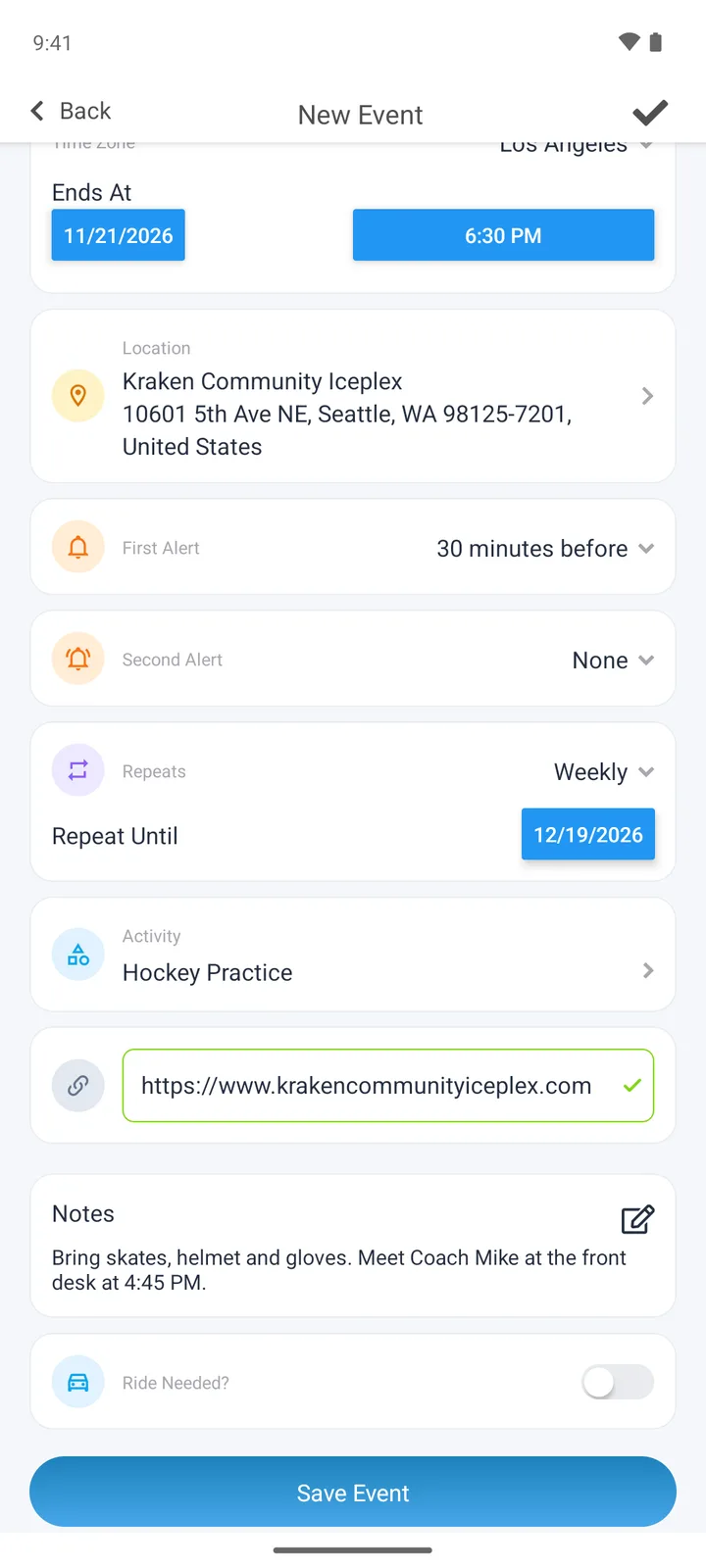
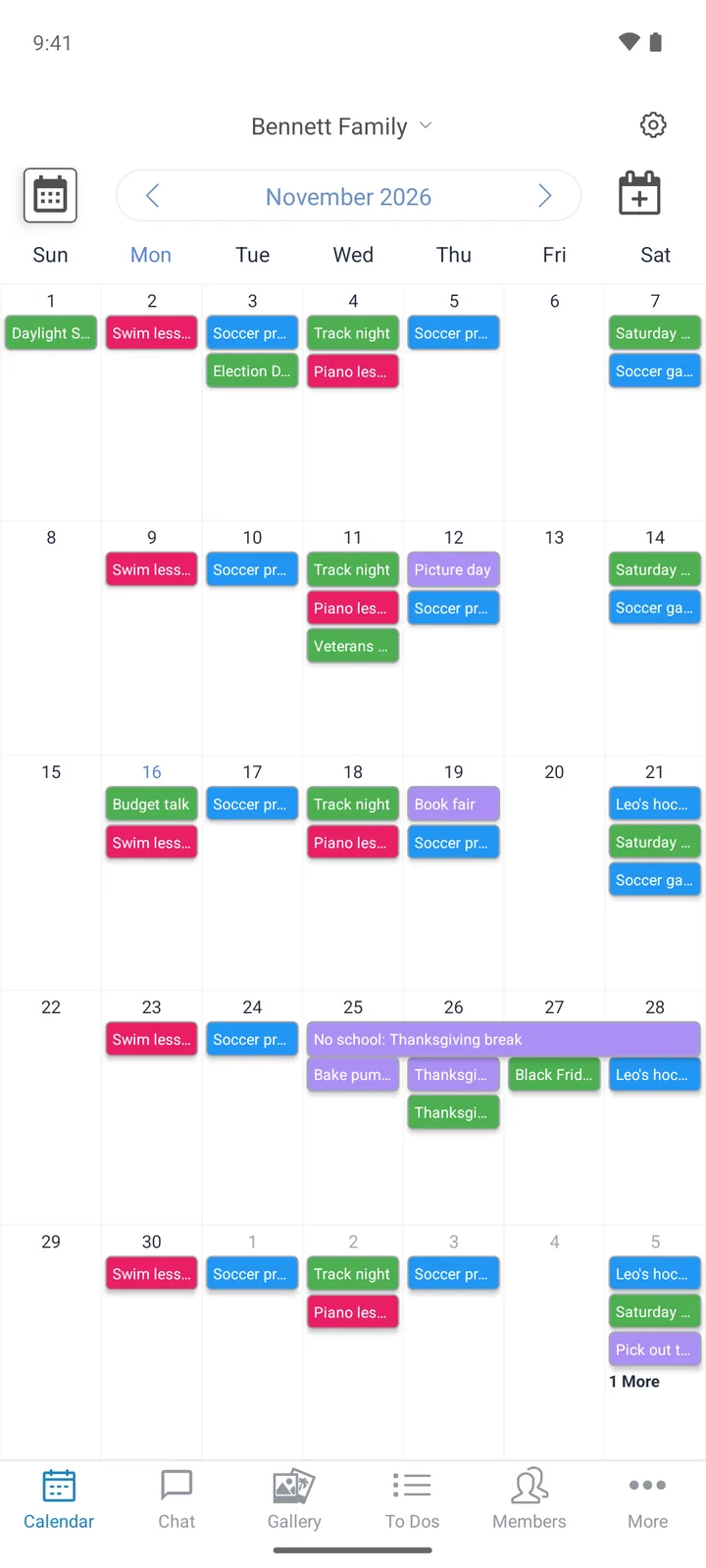
On Calendar, tap the add-event button (the calendar with a plus sign, to the right of the date) and choose New Event. Set First Alert for a reminder and Repeats for an event that comes back every week, then tap Save Event.
Steps
- On Calendar, tap the add-event button (the calendar with a plus sign, to the right of the date), then New Event.
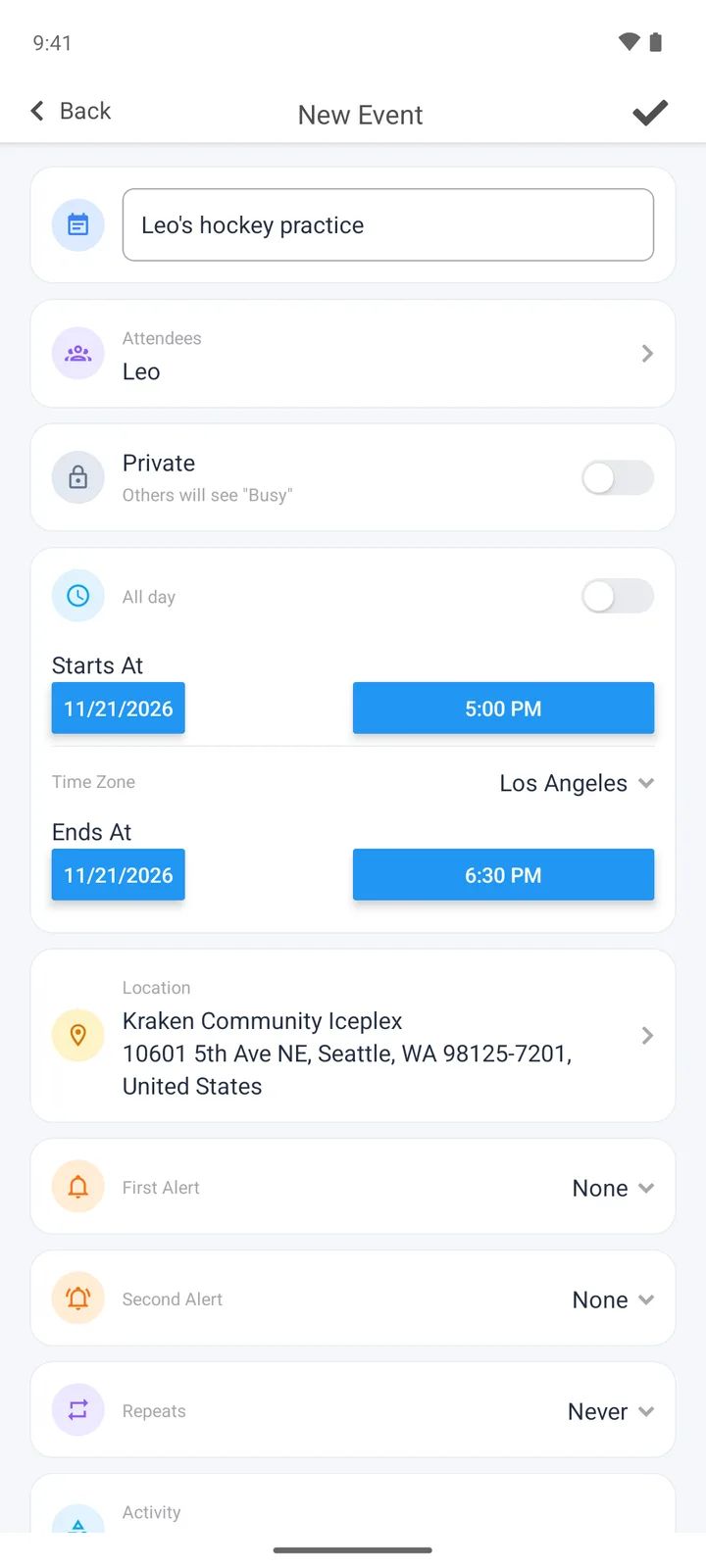
- Type a name in Event Title.
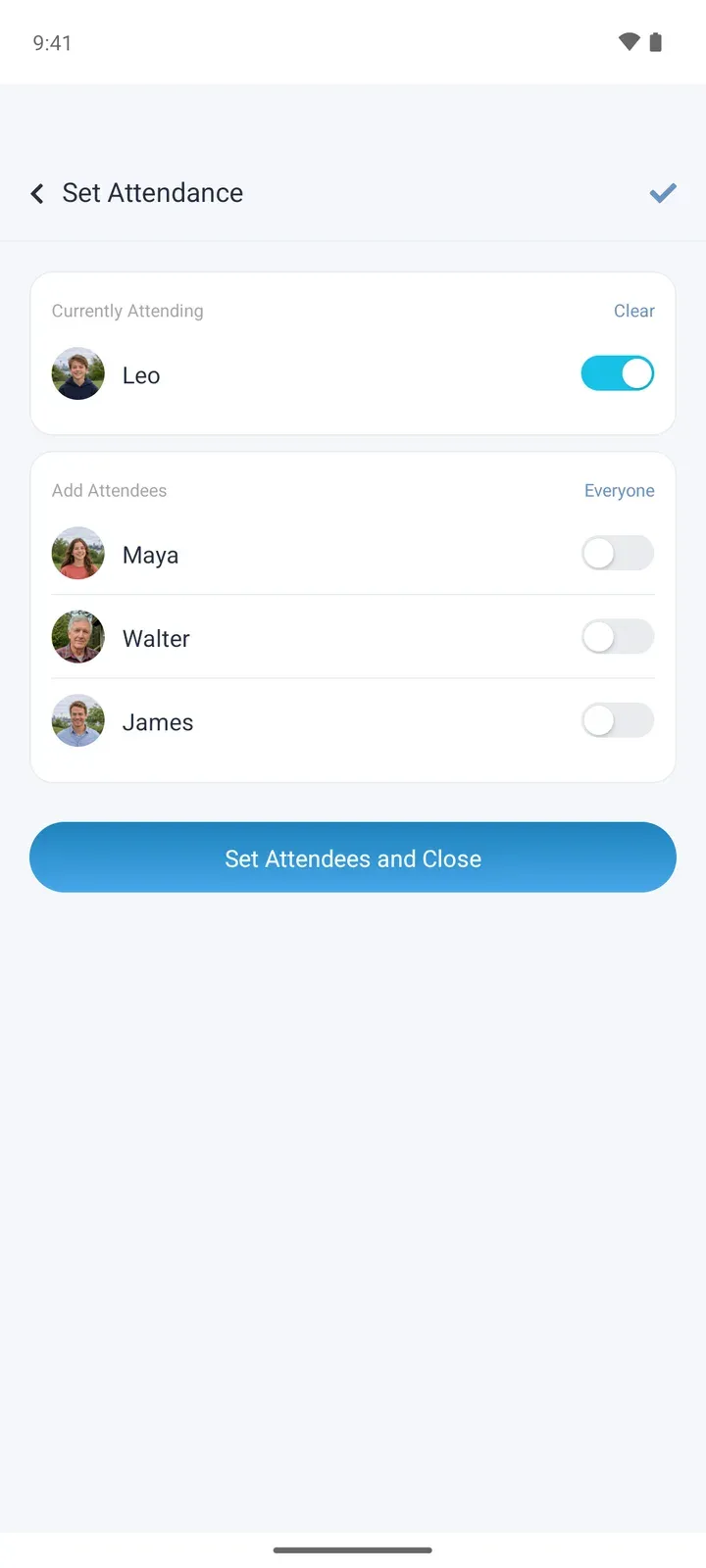
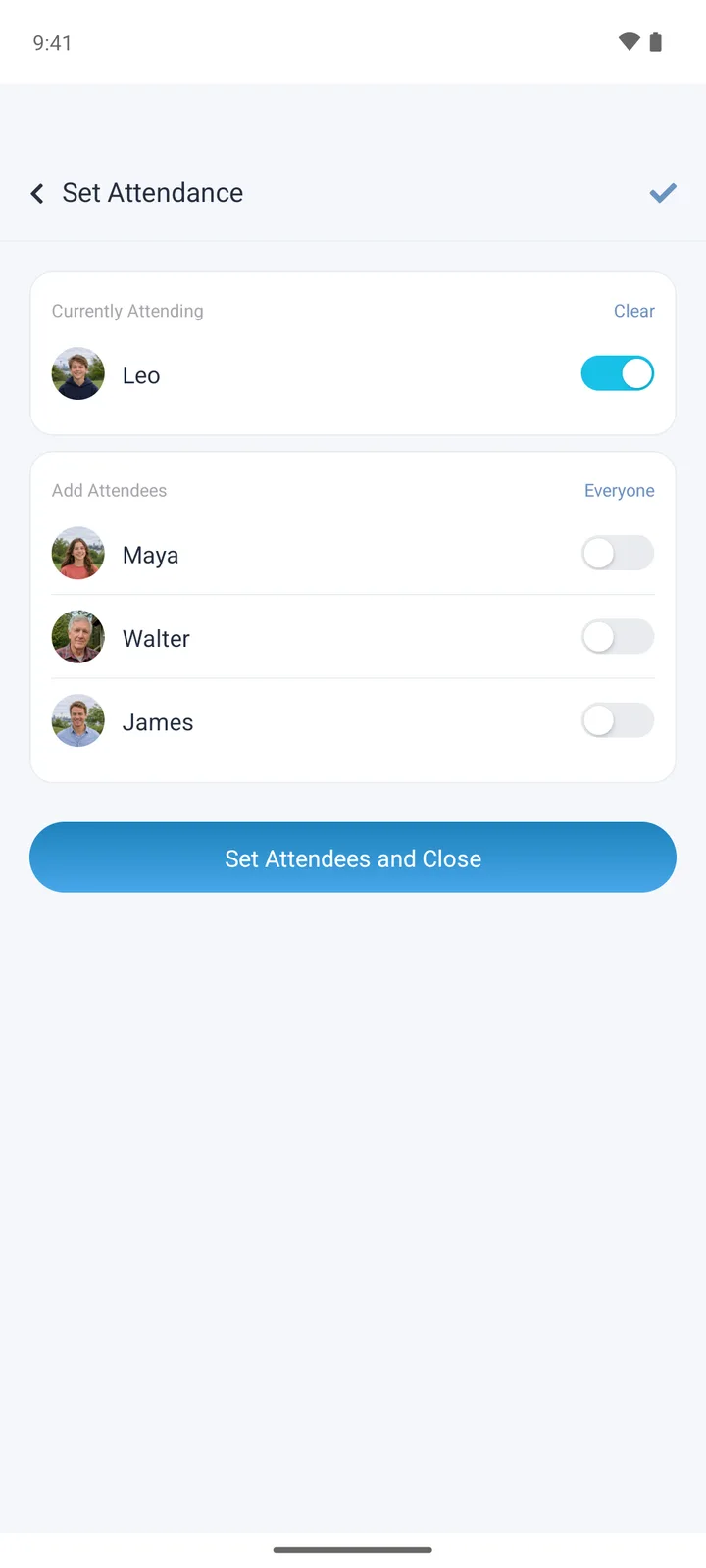
- Open Attendees, choose who is going and tap Set Attendees and Close.
- Set the day and time under Starts At and Ends At.
- Tap Location, type the place's name, tap Search and choose the place. Its address fills in.
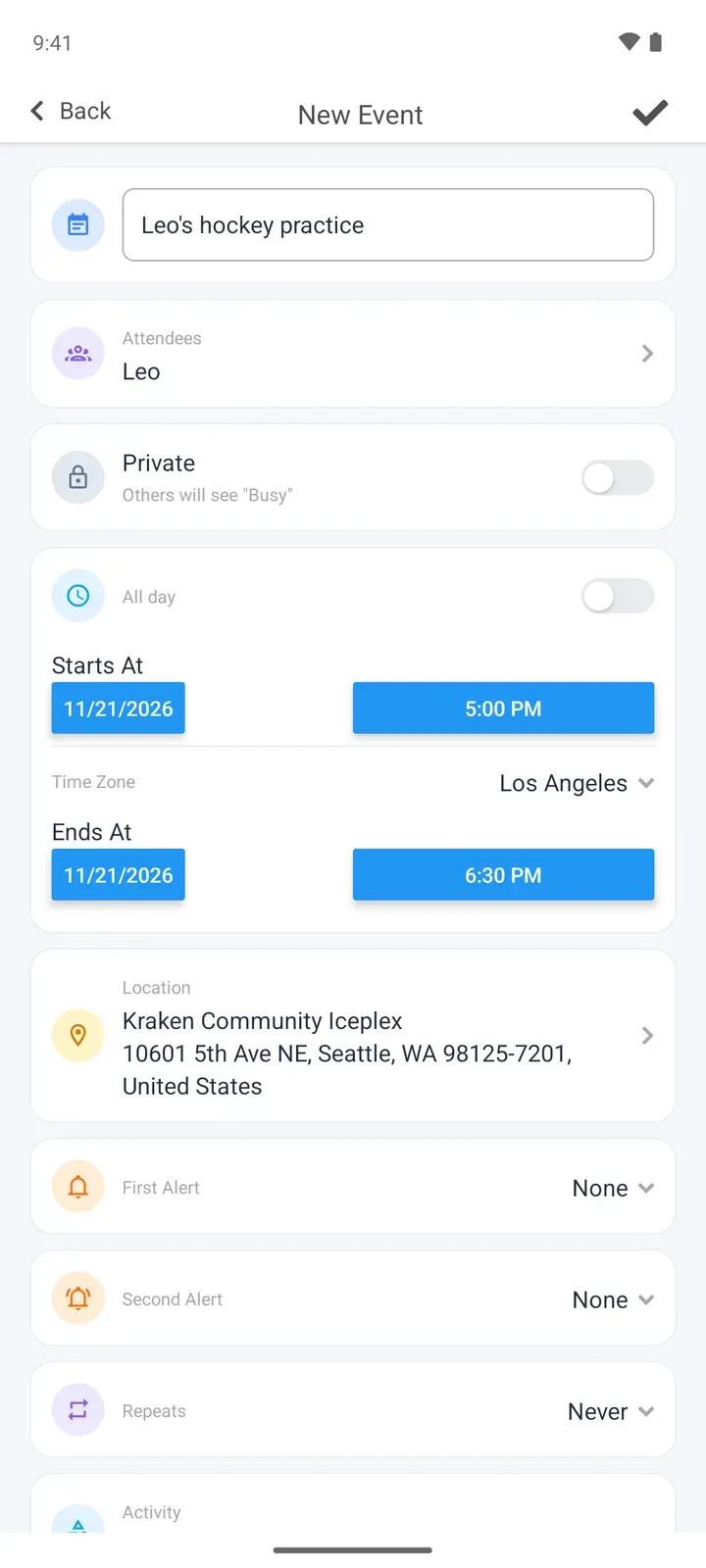
- For a reminder, set First Alert, for example to 30 minutes before.
- For an event that comes back every week, set Repeats to Weekly and choose the last date in Repeat Until.
- Check Activity (Podz can suggest one from the title, such as Hockey Practice) and write what to bring in Notes.
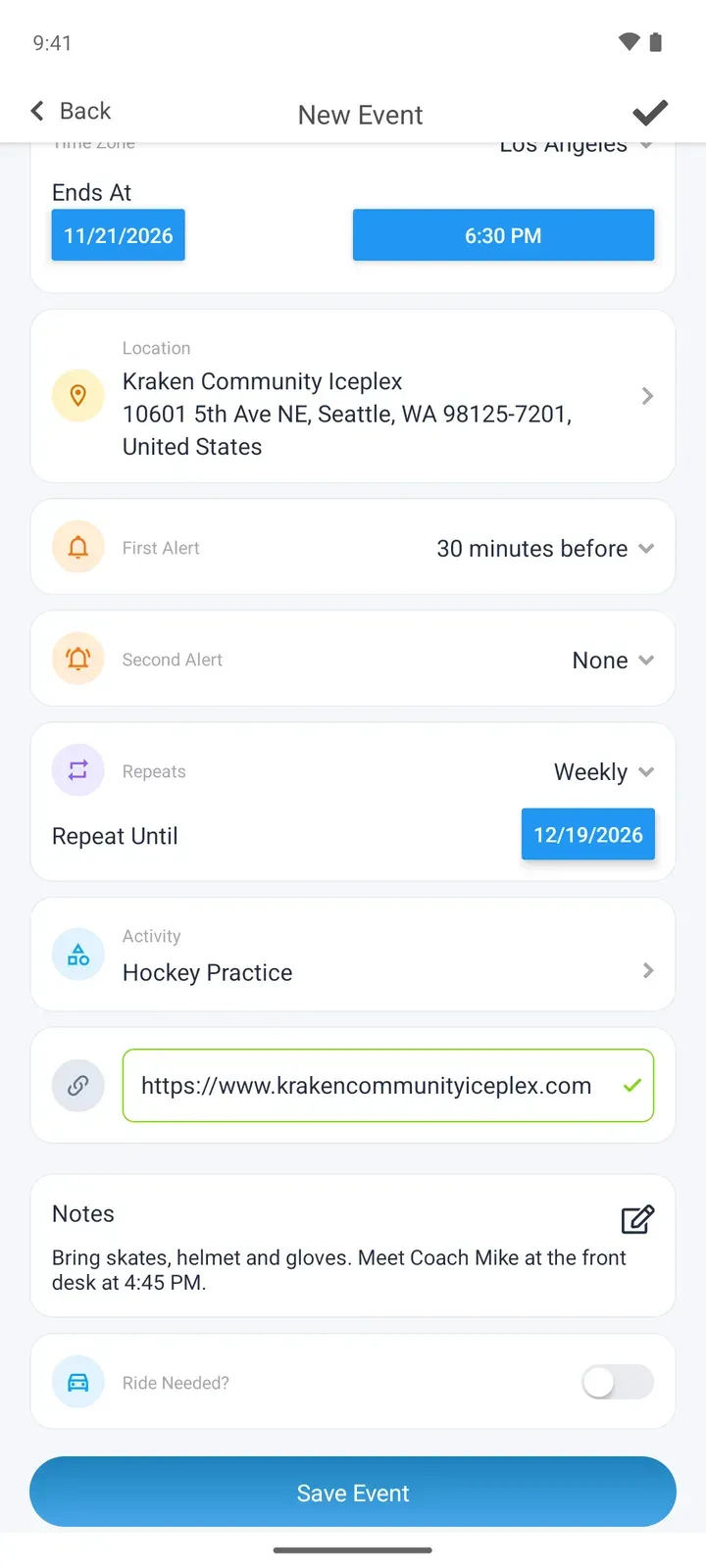
- Tap Save Event.
Steps checked on Android; iPhone screens may look slightly different. Checked in Podz 2.20.56 on Nov 16, 2026.
Good to know
For a private event, turn on Private. Other members will see Busy.
In Set Location, tap Save to my places to keep the place for next time; it then appears in Places. The form also has Second Alert for another reminder time, Time Zone, and a link field that fills in with the place’s website. When you finish typing in Notes, tap its checkmark, then save the event.
Still stuck? Get help from Podz, or search all the guides.